How to set up multi-factor authentication for Linux logins
For its architecture and compatibility, Linux has always been a popular operating system among IT professionals who handle critical workloads in cloud computing environments. However, this widely used OS is also susceptible to data breaches and attacks. Using endpoint multi-factor authentication (MFA) is essential for organizations to protect their machines and the network they're on. Having more than one factor of identity authentication will reduce the chances of hackers stealing credentials and breaching an organization's network.
Linux multi-factor authentication setup
ADSelfService Plus, an integrated Active Directory self-service password management and single sign-on solution, provides an additional layer of security for Linux users with endpoint MFA. This feature, when enabled, will allow users to access their machines after authenticating successfully through their Active Directory credentials and any of ADSelfService Plus' MFA methods.
ADSelfService Plus supports 20 different authentication methods for MFA during Linux logins, including the following:
- Biometric Authentication
- YubiKey Authentication
- Google Authenticator
- Microsoft Authenticator
- Azure AD MFA
- Push Notification Authentication
Find the complete list of supported authenticators here.
Even if a hacker manages to gain a user's credentials through brute force attacks or credential stuffing, they are unlikely to have access to the user's email or phone to be able to go through the second factor of authentication.
So how do you set up MFA for Linux logins? Follow the steps below.
Enable multi-factor authentication for Linux
Prerequisites:
- Endpoint MFA: Your ADSelfService Plus license must include Endpoint MFA. Visit the store to purchase it.
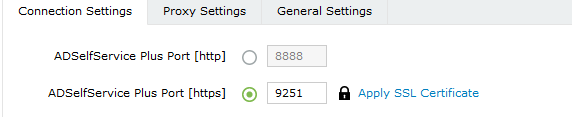
- SSL must be enabled: Log in to the ADSelfService Plus web console with admin credentials. Navigate to the Admin tab → Product Settings → Connection. Select the ADSelfService Plus Port [https] option. Refer to this guide to learn how to apply a SSL certificate and enable HTTPS.
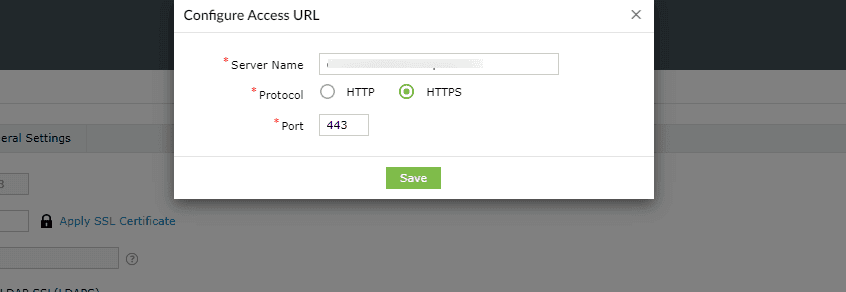
- Access URL must be set to HTTPS: Navigate to Admin > Product Settings > Connection > Connection Settings > Configure Access URL and set the Protocol option to HTTPS.
Step 1: Install ADSelfService Plus' Linux login agent through the admin console.
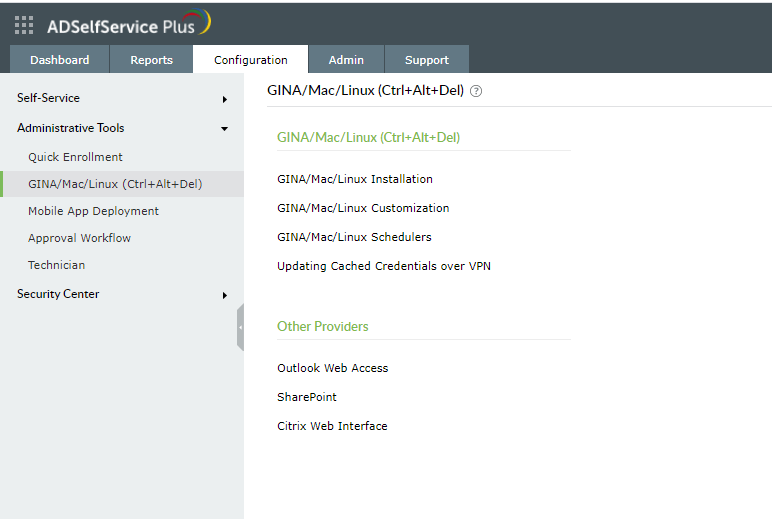
- Go to Configuration → Administrative Tools → GINA/Mac/Linux (Ctrl+Alt+Del).
- Click GINA/Mac/Linux Installation.
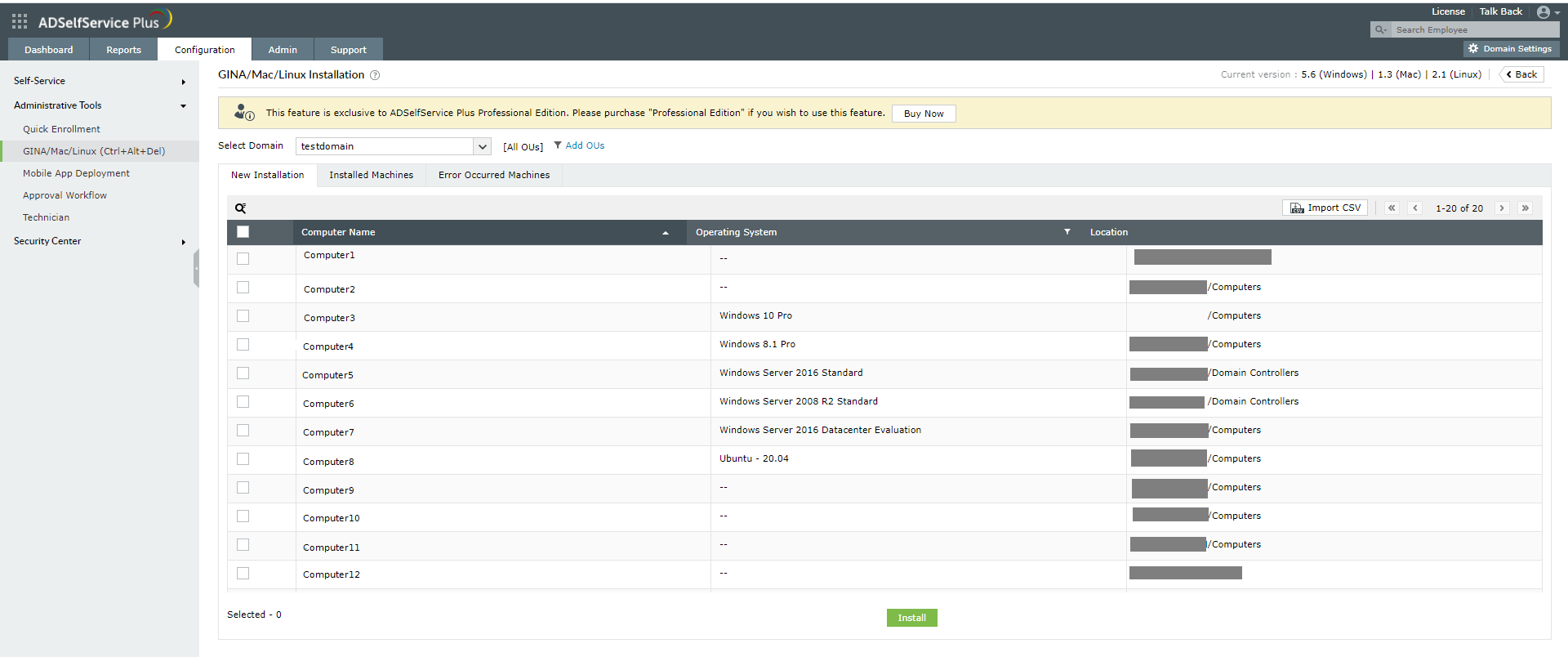
- Choose the required domain from the drop-down in the New Installation section.
- Click Add OUs to select the OUs for which the logon agent should be installed.
- Check the boxes next to the computers to which the logon agent needs to be pushed.
- Click Install.
Step 2: Enable authenticators
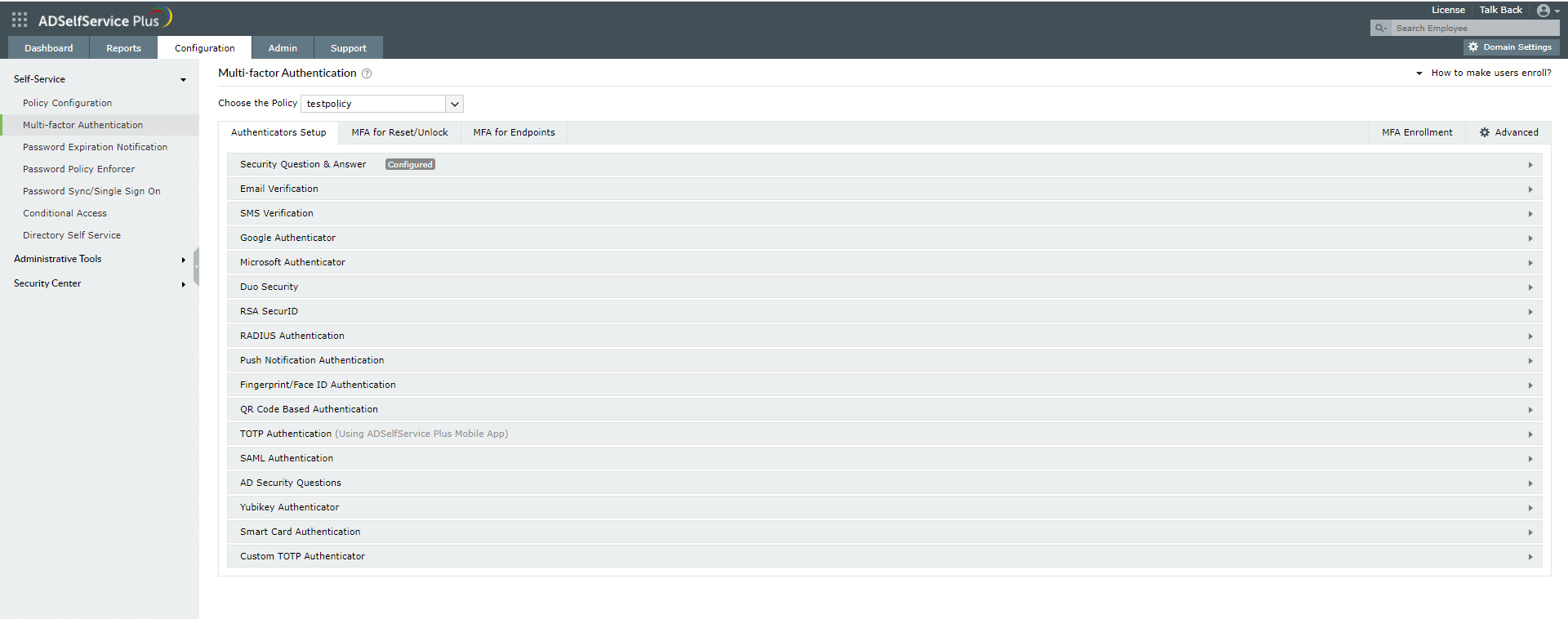
- Go to Configuration → Self-Service → Multi-factor Authentication → Authentication Setup.
- Select the type of authenticator you want to enable.
- Each authenticator comes with its own group of settings. Enter the required information in the appropriate fields. If you choose Google Authenticator, Microsoft Authenticator, or TOTP Authenticator, just select the enable button.

Step 3: Enable multi-factor authentication for Linux
- Go to Configuration → Self-Service → Multi-factor Authentication → MFA for Endpoints
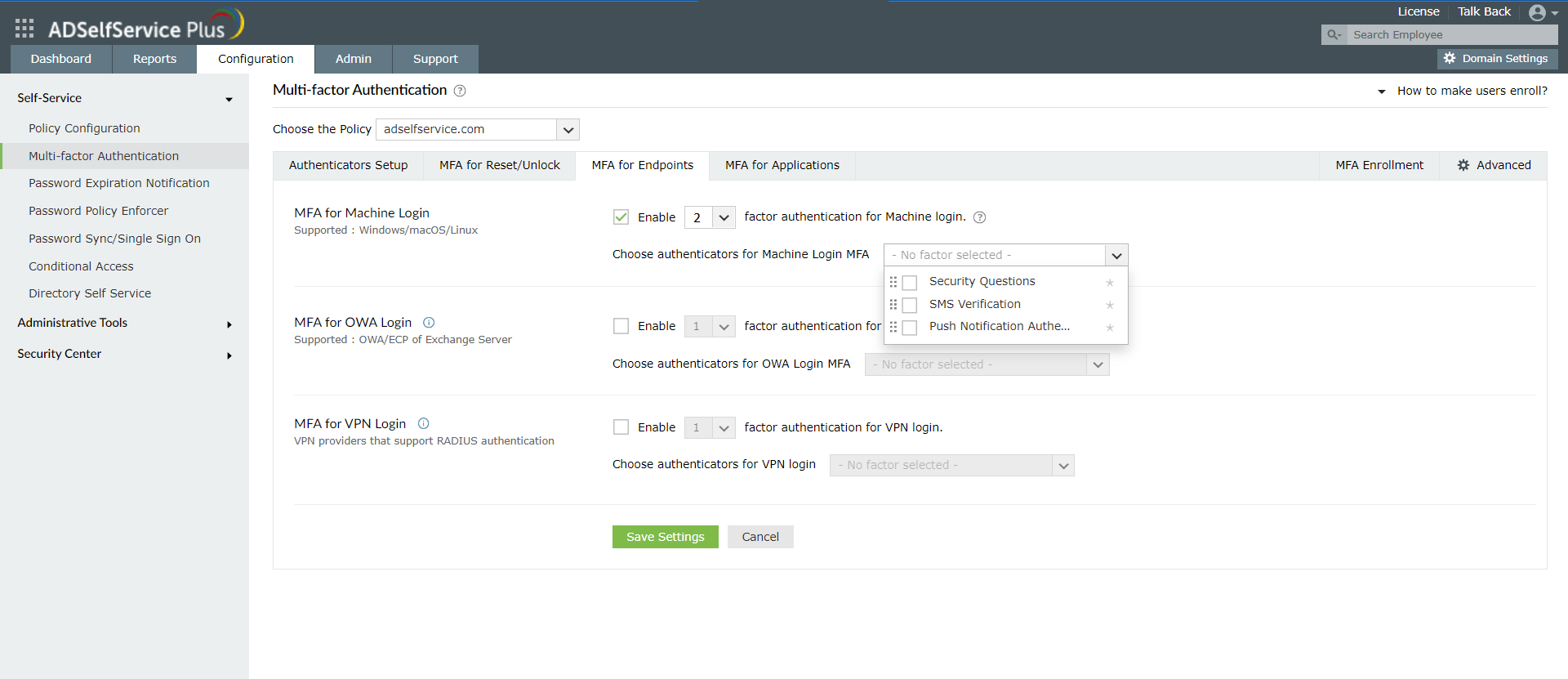
- Choose the Policy from the drop-down.
Note:
- ADSelfService Plus allows you to create OU and group-based policies. To create a policy, go to Configuration → Self-Service → Policy Configuration → Add New Policy. Click Select OUs/Groups, and make the selection based on your requirements. You need to select at least one self-service feature. Finally, click Save Policy.
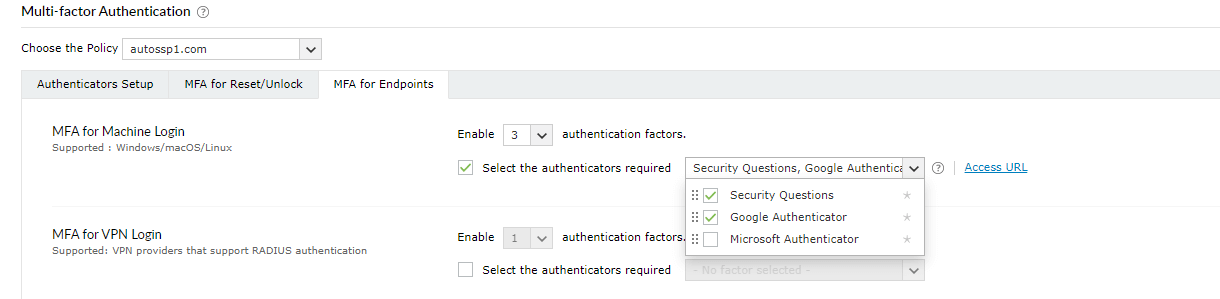
- In the MFA for Machine Login section, check the Enable __ factor authentication box, select the number of authentication methods, and specify which ones you'd like to use from the drop-down.
- Click Save Settings.
And that's it! You've successfully configured MFA for Linux systems.
Your users' accounts will have better security, thanks to ADSelfService Plus' endpoint multi-factor authentication feature.