DNS Role Based Access Controls (RBAC) Windows

DNS Role Based Access Controls (RBAC) Windows

DNS Role Based Access Controls (RBAC) Windows

DNS domains in the network can be access granted to individuals of the organization through DDI Central. Admins can grant access to selected users for specific DNS domains in the network.

To grant access to users in the network:

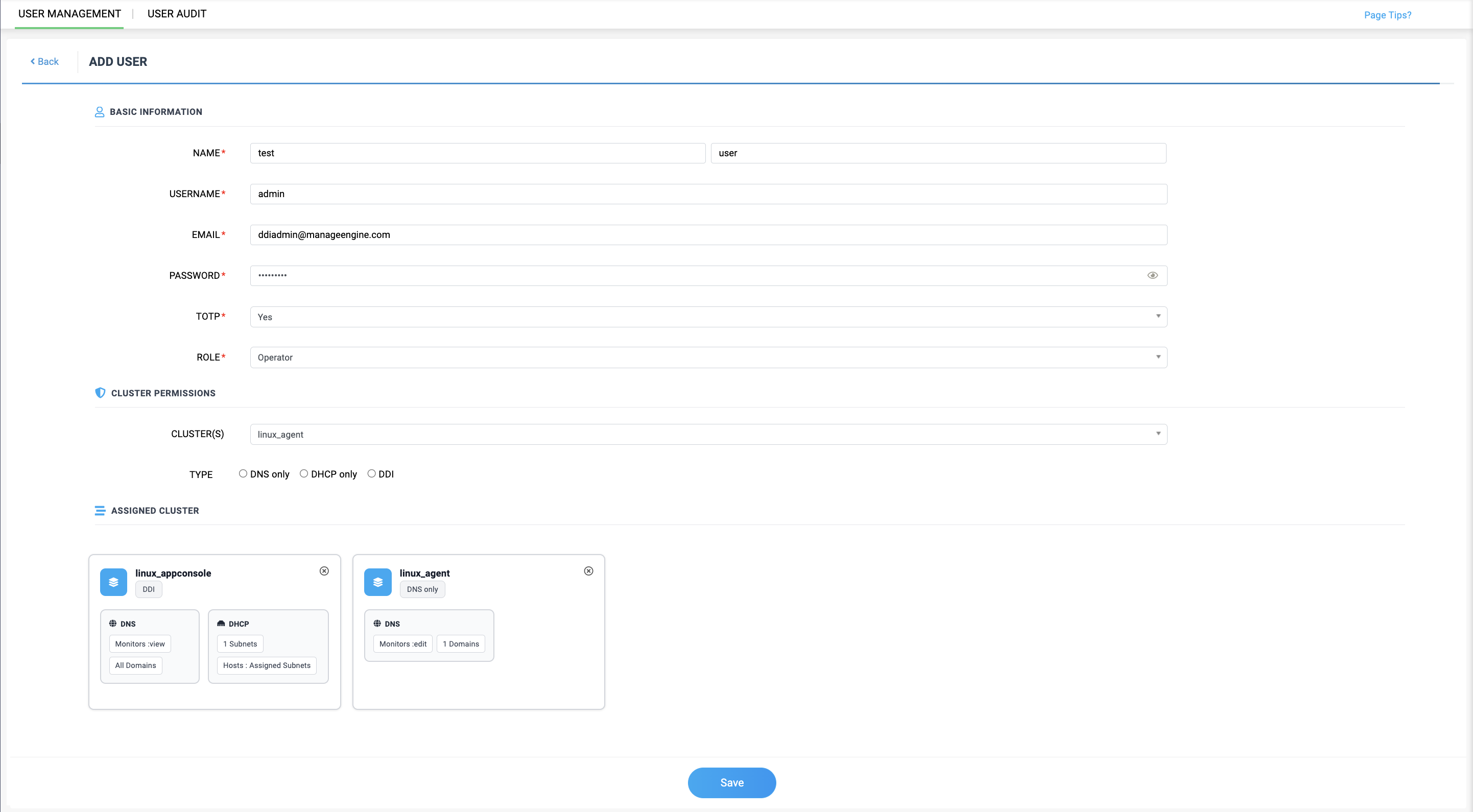
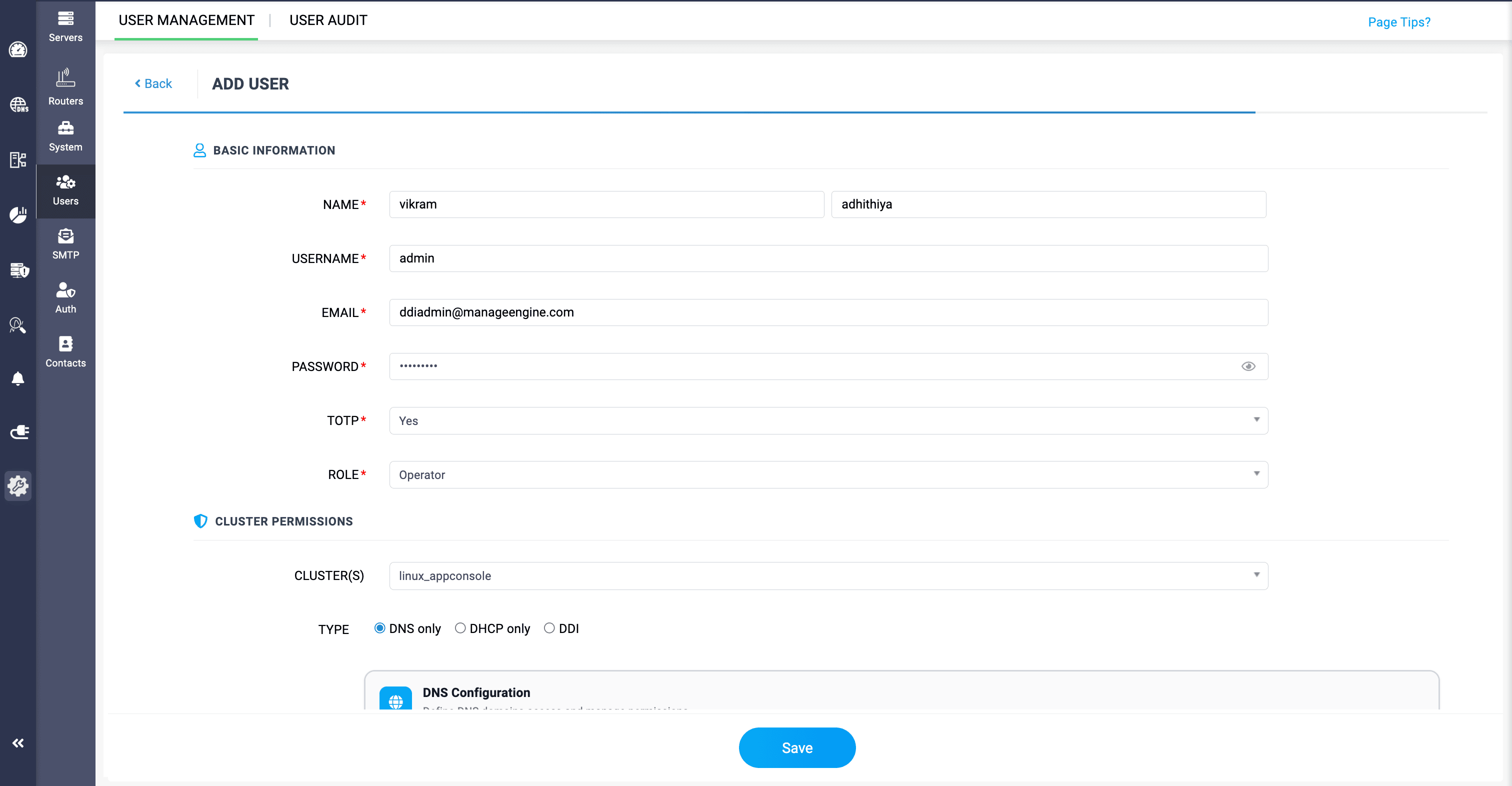
  1. Click through Settings>Users>Add User.
  2. Provide the details in the following fields:
    • NAME: Provide the name of the individual in the network.
    • USERNAME: Provide their username assigned in the network.
    • EMAIL: Provide the network admin's email ID.
    • PASSWORD: Provide the password for configuration.
    • TOTP: Enable TOTP for Two step verification before granting access to the domains.
    • ROLE: Select the role you want to assign to the individual. There are 4 different role options, and only Operator and Guest roles can be granted access to the domains.
    • CLUSTERS: Select the cluster from which the individuals gets access granted to the domains.
    • TYPE: Select from which network service's resources need access granted.

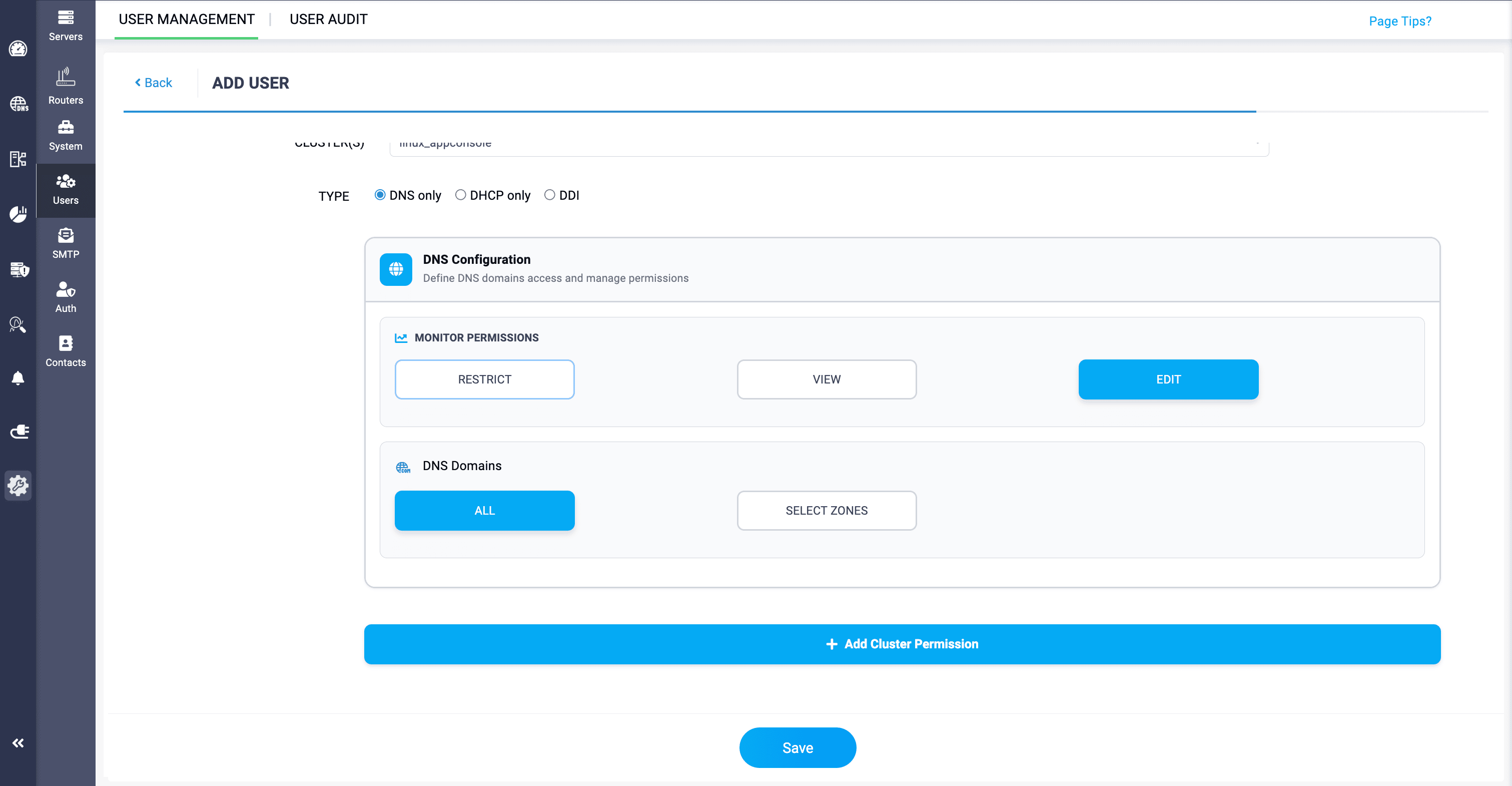
  3. Under the DNS configuration section we have MONITOR PERMISSIONS, where you can prevent the user for accessing the monitors with RESTRICT option, or you can just let them view the monitors in the network with VIEW option, or you can allow them to edit the monitors with the EDIT option.
  4. In the DNS domains section, you can select ALL for granting access to all the domains in the network, or select SELECT ZONES option for granting access to certain domains in the selected zone.
  5. Click on +Add Cluster Permissions option to save the configurations, and click on Save to add the user with the access permissions in the network.
                  New to ADSelfService Plus?

                    • Related Articles

                    • DHCP Role Based Access Control (RBAC)

                      DHCP Role Based Access Control (RBAC) DHCP subnets, supernets, and hosts in your organizations' servers can now be assigned to individuals in the network based on their roles. Admins can grant access to selected users for specific subnets, supernets, ...
                    • Adding Windows DNS-DHCP servers

                      Note: PowerShell version 5.1.2 or higher is required for a successful setup. Ensure that Windows Remote Management services are running on the Windows DNS and DHCP servers you plan to onboard into DDI Central's Management UI Console. Step 1. WinRM ...
                    • DDI Central for Microsoft DNS DHCP

                      About ManageEngine DDI Central DDI Central is a comprehensive network management solution that unifies DNS, DHCP, and IP Address Management (IPAM) to enhance operational efficiency and network stability. It is deployed as an overlay on your existing ...
                    • 48. DNS options

                      Option Name Option Description Data Type Block Tags Supported Versions Example Grammar allow-new-zones Controls whether zones can be added to the BIND nameserver at runtime using rndc addzone. The default value is no. If set to "yes," the BIND server ...
                    • DNS Zone Versioning in Windows

                      DNS Zone Versioning in Windows Zone versioning in DDI Central allows to view the previous versions of the zone, which can also be exported or restored as the current version. Previous version of the zone can be viewed by clicking on Previous Version ...