DHCP Role Based Access Control (RBAC)
DHCP Role Based Access Control (RBAC)
DHCP subnets, supernets, and hosts in your organizations' servers can now be assigned to individuals in the network based on their roles. Admins can grant access to selected users for specific subnets, supernets, and hosts in the network.
To grant access to users in the network:
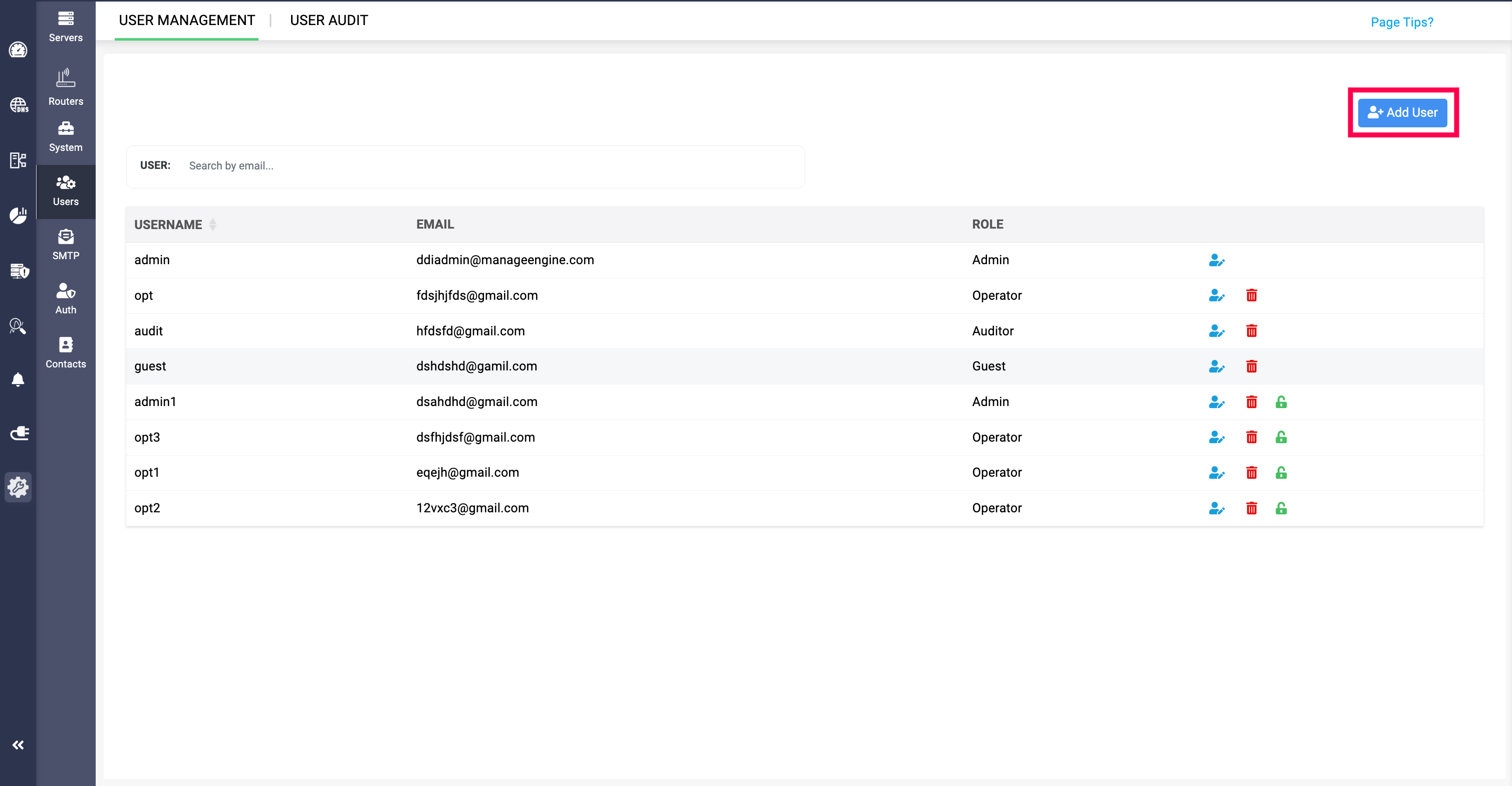
- Click through Settings>Users>Add User.
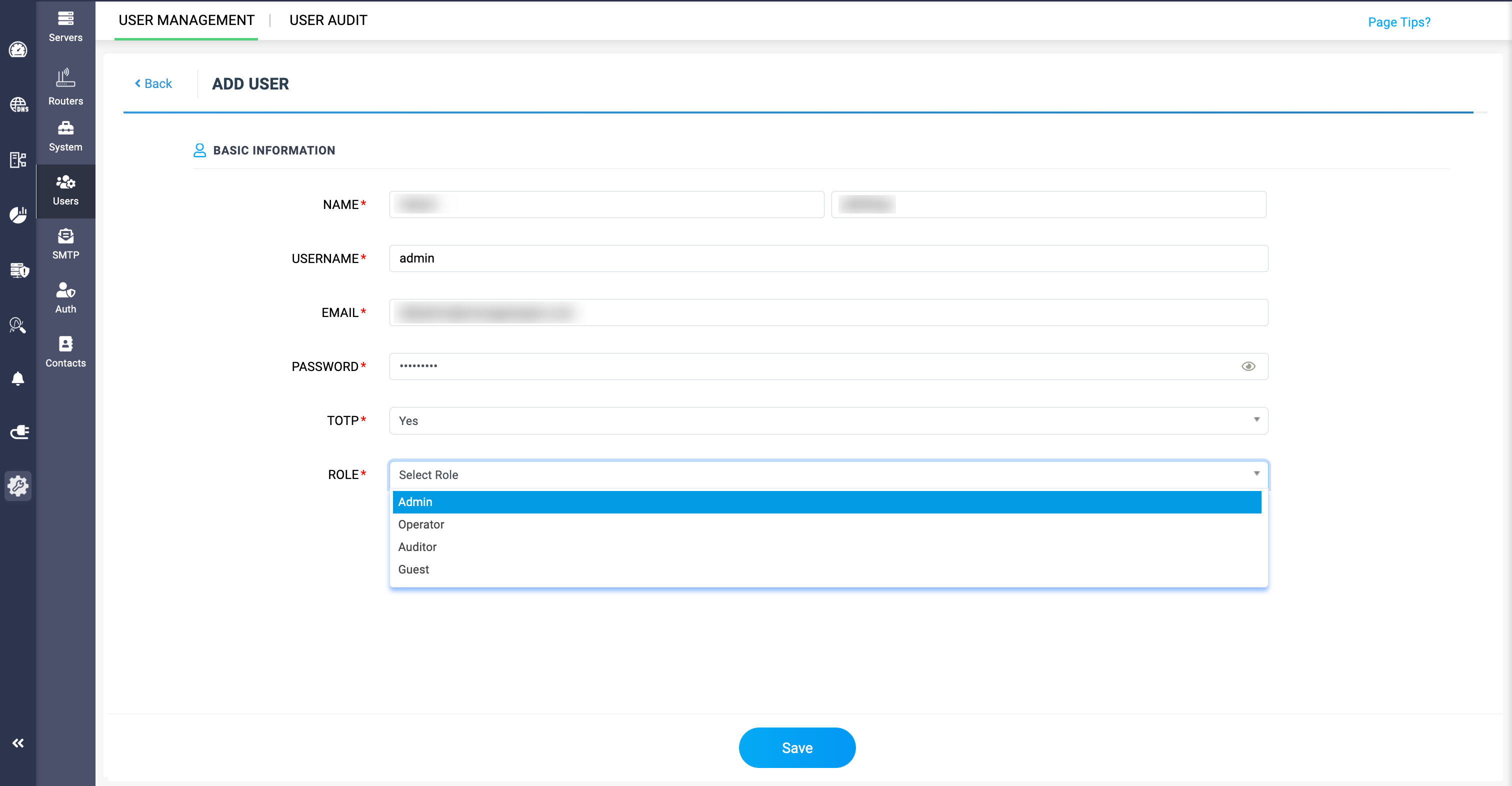
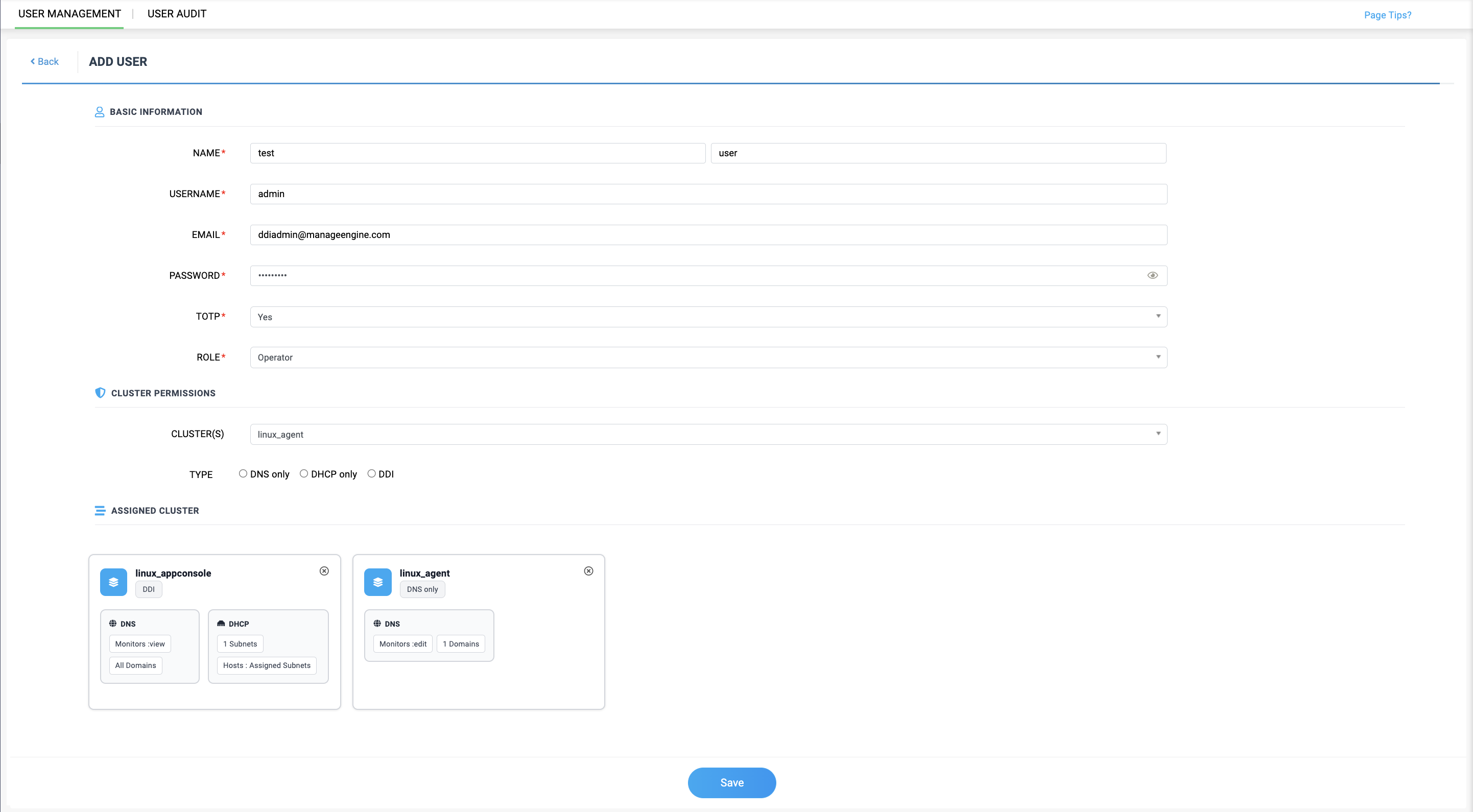
- Provide the details in the following fields:
- NAME: Provide the name of the individual in the network.
- USERNAME: Provide their username assigned in the network.
- EMAIL: Provide the network admin's email ID.
- PASSWORD: Provide the password for configuration.
- TOTP: Enable TOTP for Two step verification before granting access to subnets, supernets, or hosts.
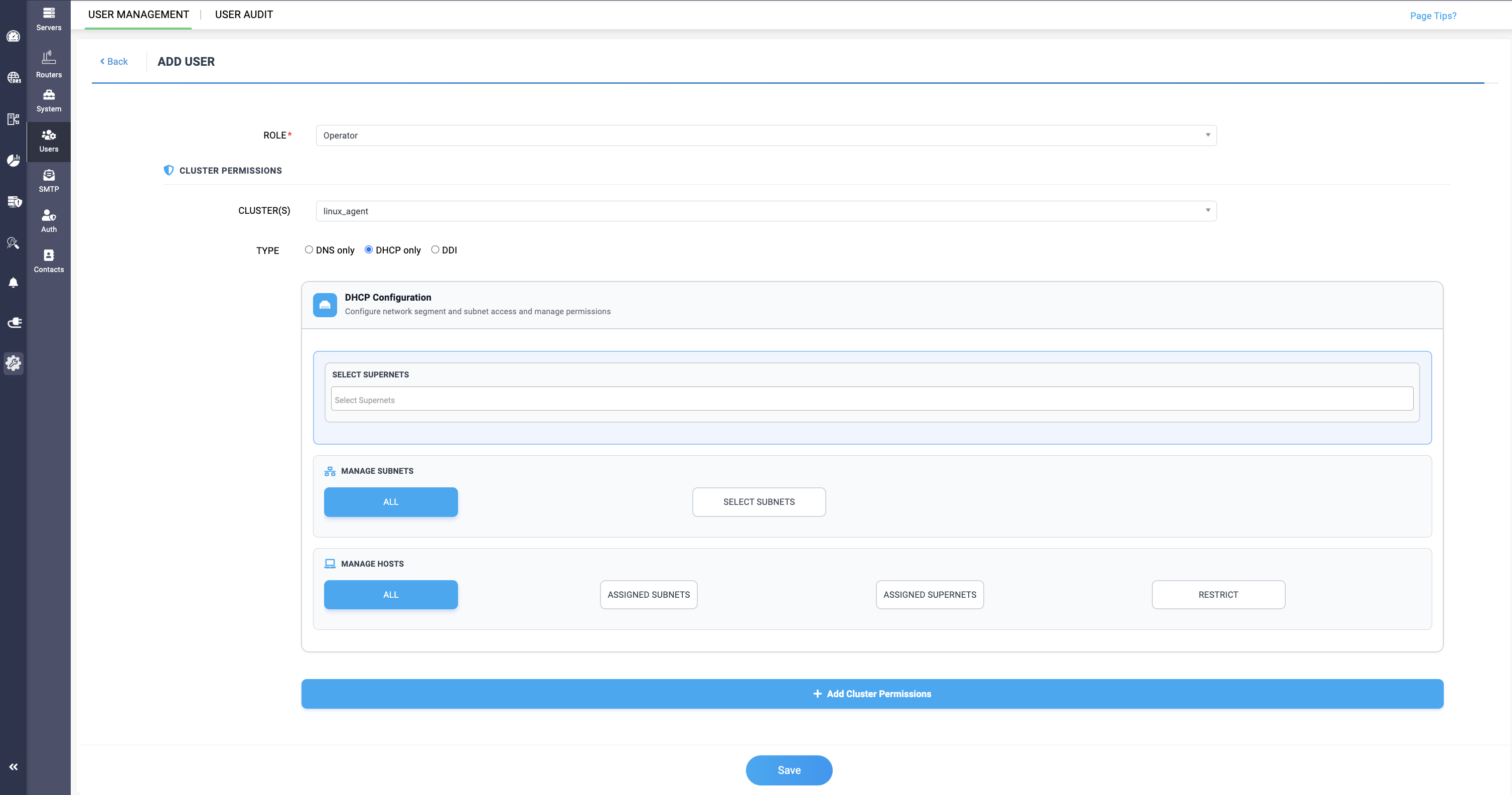
- ROLE: Select the role you want to assign to the individual. There are 4 different role options, and only Operator and Guest roles can be granted access to subnets, supernets, or hosts.
- CLUSTERS: Select the cluster from which monitors and domains need access granted for the individuals.
- TYPE: Select from which network service's resources need access granted.
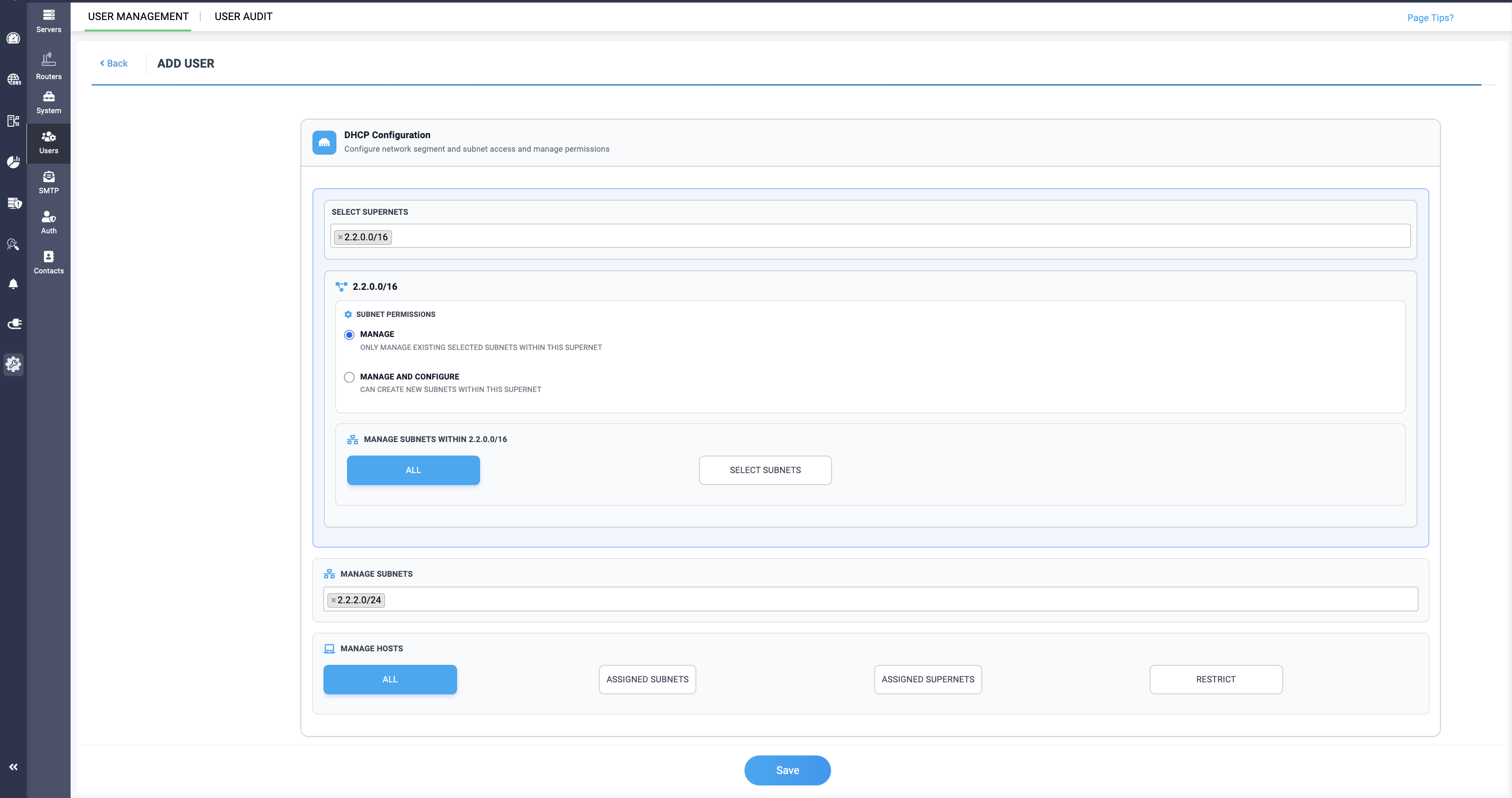
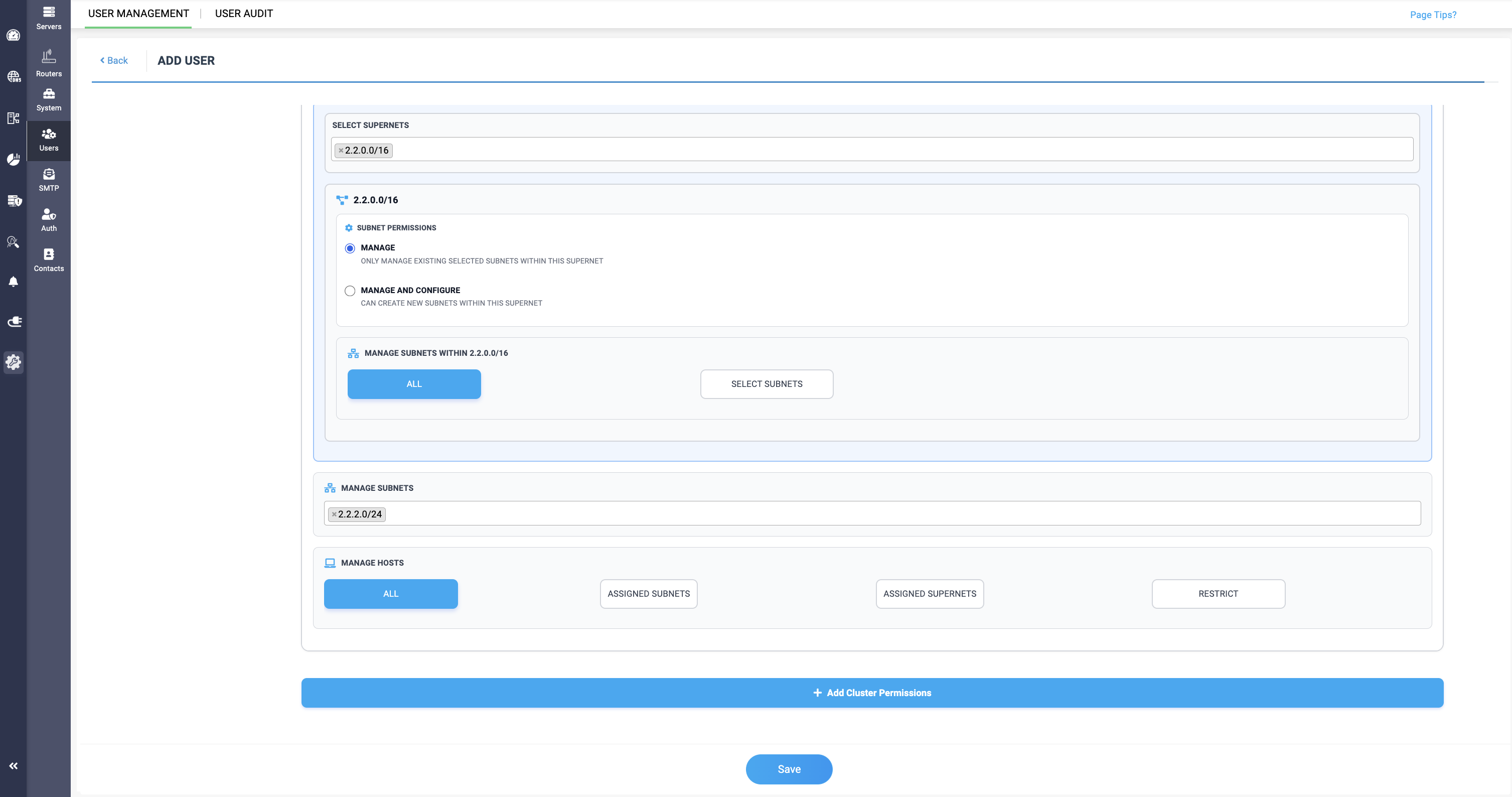
- Select the supernet you want to grant access for the users in the Select Supernets field.
- When the supernet is selected, two new options gets displayed for the SUPERNET PERMISSION:
- MANAGE - This option can only allow the user to manage the existing subnets in the selected supernet.
- MANAGE AND CONFIGURE - This option can allow the user the both manage the subnets and also create new subnets within the selected supernet.
- Below that, you can select subnets for access granting, where you can select all the subnets in the network by clicking on ALL, or select specific subnets by clicking on SELECT SUBNETS.
- Finally, you can select the hosts for access granting, where admins can select ALL for managing, or select ASSIGNED SUBNETS for managing only the subnets assigned in the host, or select ASSIGNED SUPERNETS for managing only the supernets assigned in the host.
- Click on +Add Cluster Permissions option to save the configurations, and click on Save to add the user with the access permissions in the network.