Installing OpManager with Amazon RDS MSSQL instance
Installing MSSQL instance in Amazon RDS
- Step 1: While installing MSSQL instance in Amazon RDS, please make sure that the edition and version we support are selected.
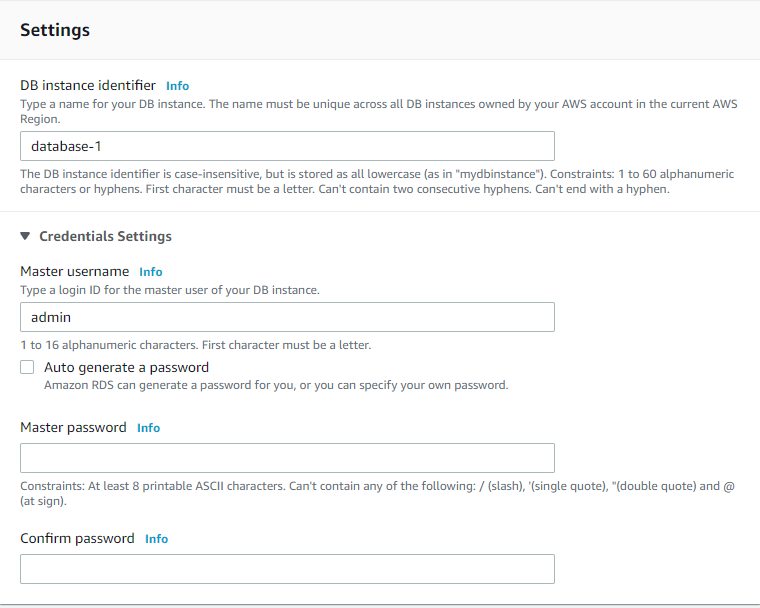
- Step 2: Make a note of the Master username and password provided (these credentials will be used to authenticate the database with OpManager).
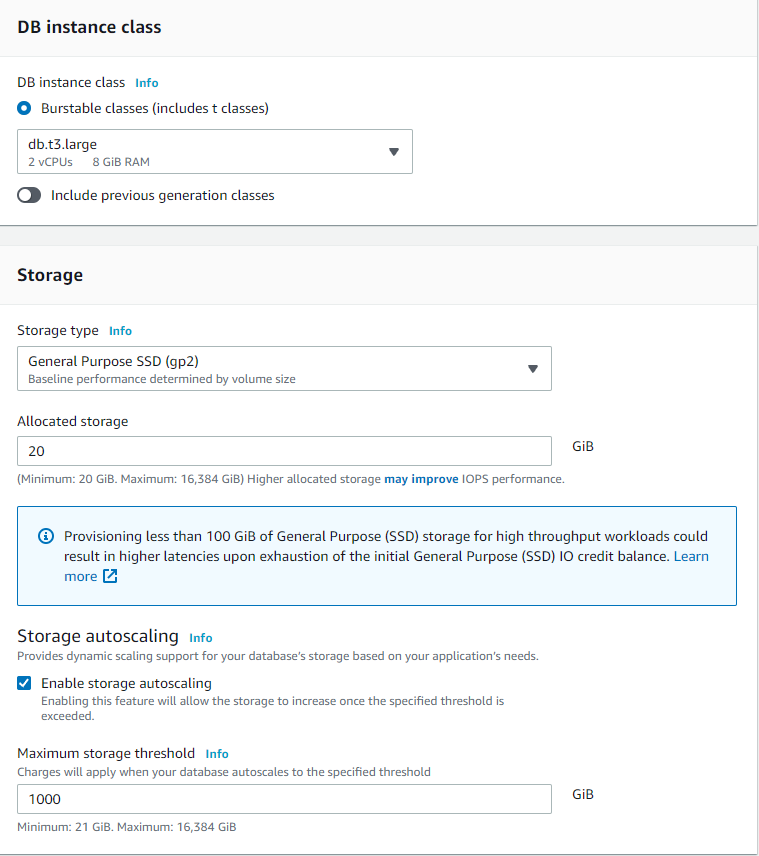
- Step 3: Make sure that sufficient resources are allocated to the instance (CPU, RAM and storage).
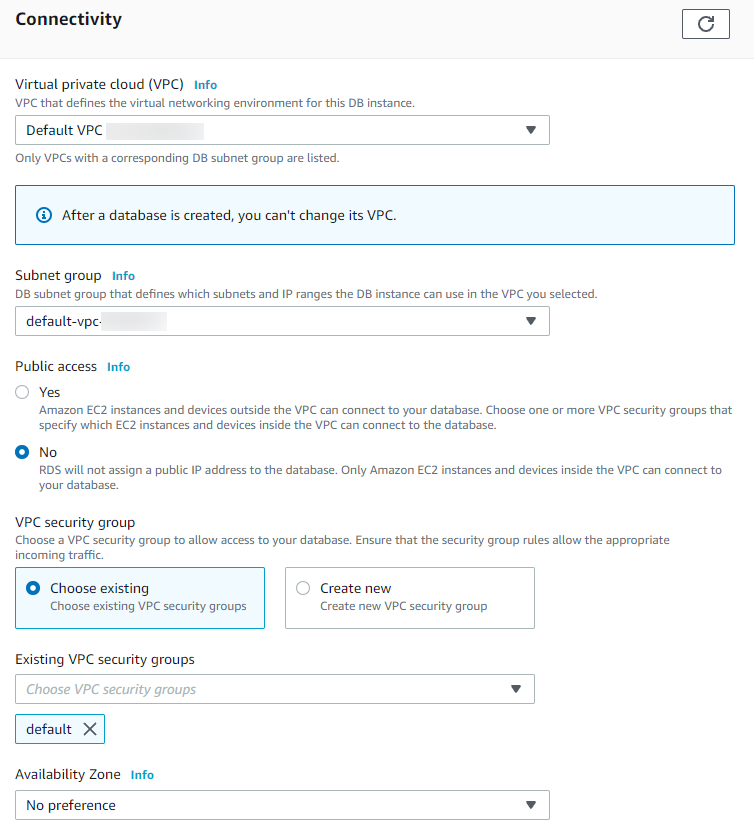
- Step 4: We recommend that the OpManager installation is done on another server in the Amazon EC2 instance and hence the same VPC has to be provided (if the connection is to be private). Also, verify if the security group has correct Inbound and Outbound rules configured (i.e. the port being used in the MSSQL instance should be open in the Inbound rule).
- Note: To allow everyone, add "All Traffic" with 0.0.0.0/0.
Configuring OpManager with the Amazon RDS
- Make sure that the MSSQL instance is created and above pre-requisites are been followed.
- Once an instance is successfully created, navigate to the Connectivity & Security tab, and make a note of the Endpoint and Port.
- Now, install the desired build of OpManager. During DB configuration provide the Endpoint in the Host Name text box and specify the Username and password (as noted in the 2nd point of the above heading "Installing MSSQL instance in Amazon RDS").
- Once the configuration is completed, proceed with the installation process.
- Once installation is completed, launch/start the product.
Note: In this case, we will not be able to fetch the bcp files from the RDS instance. So please make sure that the Command Line Utilities and ODBC driver for the SQL version being used is installed in the OpManager. Once installed, the bcp files can be found under the Command Line Utilities installed directory in the server.