How to generate backup verification codes in EventLog Analyzer
Objective
To guide users on generating backup verification codes in EventLog Analyzer, enabling secure account access when the primary two-factor authentication (2FA) method is unavailable.
Prerequisites
- 2FA must be enabled for the user account in EventLog Analyzer.
- The admin or user should have access to their account to manage backup codes.
Steps to follow
Step 1: Log in to EventLog Analyzer.
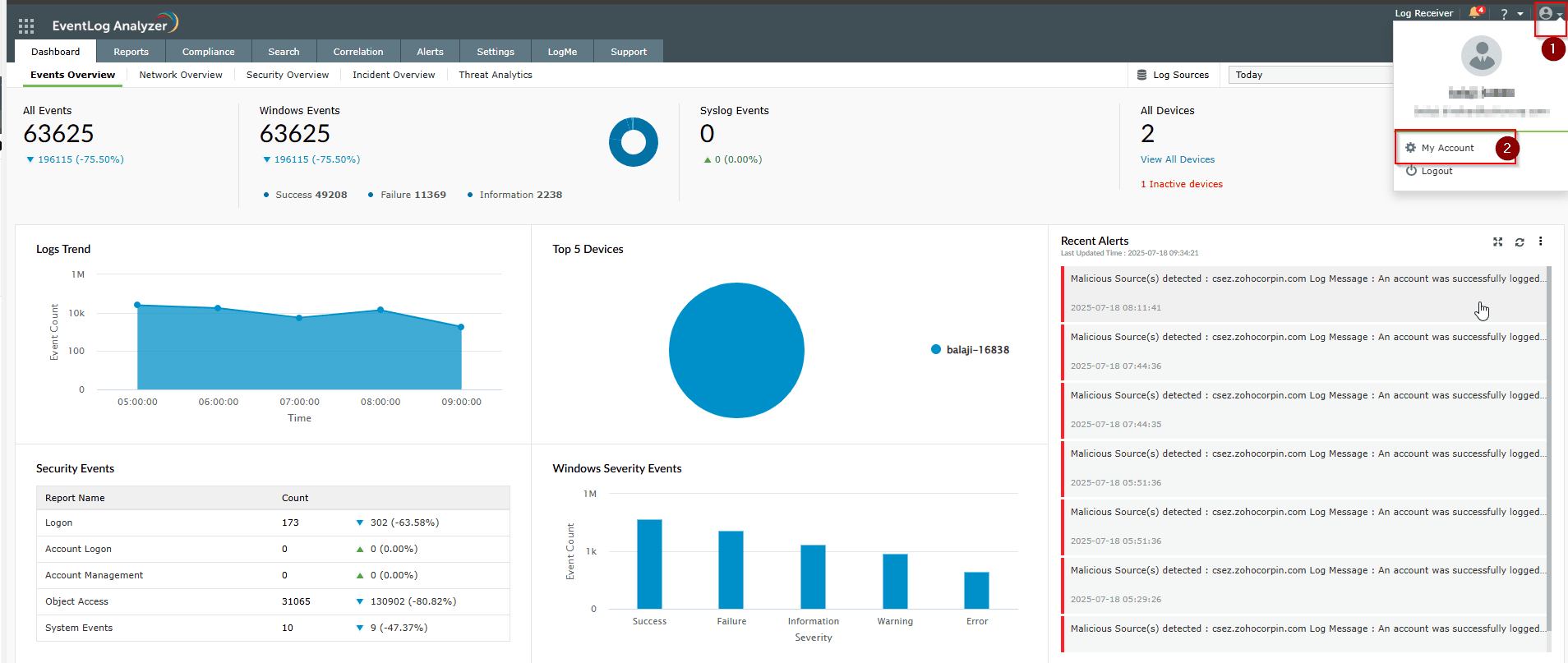
Step 2: Click your profile icon in the top-right and select My Account.
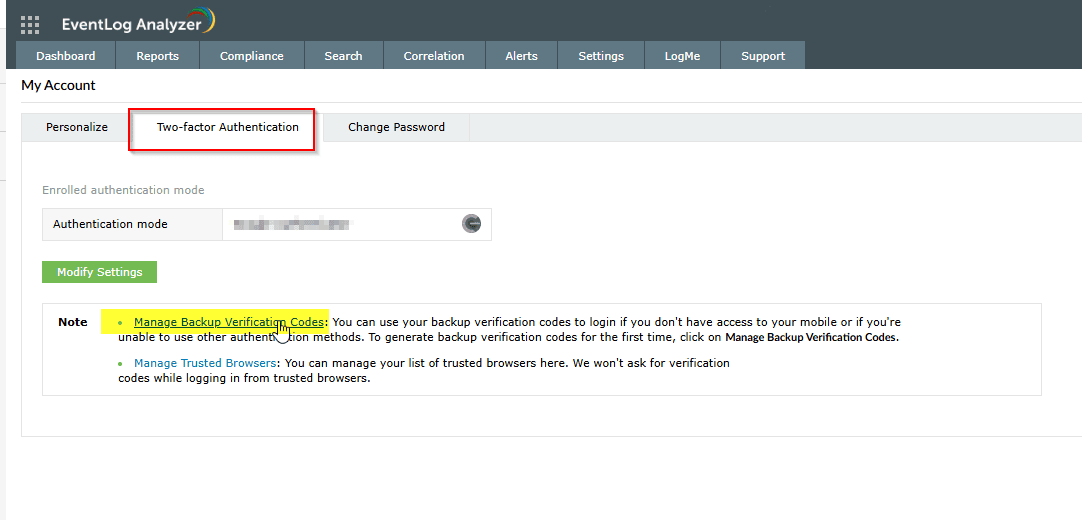
Step 3: Navigate to Two-Factor Authentication.
Step 4: Under the 2FA settings, locate the Manage Backup Verification Codes section.
Step 5: A set of five backup codes will be displayed. Click Download or Copy to securely store them.
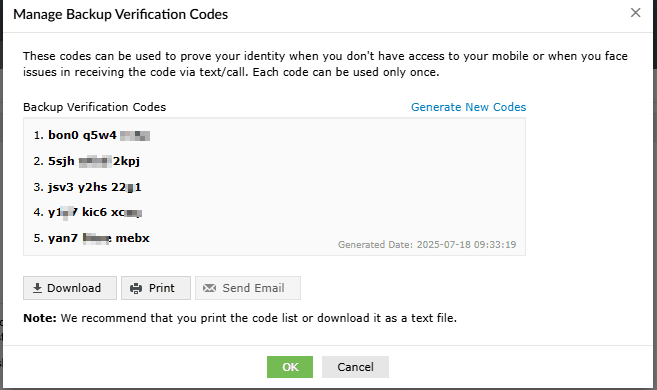
Step 6: Confirm the action if prompted.
Step 7: Store these codes in a secure, offline location for future use.
Tips
- Backup codes are single-use. Once used, they cannot be reused.
- Keep backup codes in a secure place, such as a password manager or encrypted file.
- It’s recommended to generate a new set of backup codes after using any of the existing ones or periodically for safety.
- If you're an administrator, you can view and manage enrolled users and their 2FA settings by navigating to Settings > Admin Settings > Logon Settings > Manage Enrolled Users.