How to create or configure an Alert Profile in EventLog Analyzer
Objective
Learn how to set up an alert profile in EventLog Analyzer to automatically send notifications based on specific log events and conditions. This guide simplifies the process for users at all technical levels.
Prerequisite
- Technician or admin access with permission to manage alert profiles in EventLog Analyzer.
- Basic understanding of which logs or events you want to monitor and alert.
Steps to follow
- Access the Alert Creation Page
- From the Dashboard, click + Add in the top-right corner of the navigation bar.
- You can also create an alert profile from Alerts → Add Alert Profile at the top right corner.
- Alternatively, open the Search module, build your search criteria, verify the data, and click Save As to create a custom alert profile.
- Enter Profile Details
- Enter a unique name for your alert profile.
- Select a severity level: Critical, Trouble, or Attention.
Severity Levels:
- Critical: High-priority security or operational events that need immediate action.
- Trouble: Medium-priority events that may indicate potential issues.
- Attention: Low-priority informational alerts for tracking system behavior.
- Select Devices ️
Click the + icon to add the devices or device groups you want this alert to monitor.
Note: Devices are listed based on technician access. Admin users, by default, have access to all device groups.
- Define Alert Criteria
Choose one of the following:
- Predefined Alerts – Common alerts from built-in reports.
- Compliance Alerts – Based on audit and compliance standards.
- Custom Alerts – Create your own rule using log type, event ID, or keywords.
- Customize the Alert Message (Optional)
Click + Add under Alert Format Message to modify how your alert notification looks.
Use dropdown options to include useful details like User Account Name, Event Type, or Device Name. - Advanced Configuration
- Threshold:
Use thresholds to avoid duplicate alerts or excessive notifications for the same event.
- Manual Threshold – Set how many events should occur in a certain period before an alert triggers.
- Smart Threshold – Let EventLog Analyzer learn occurrence of events based on ML Algorithms and adjust alert frequency to reduce false alarms.
- Note: Deleting a Smart Threshold will remove its learned data.
- Time Range:
Define when alerts should trigger — during working hours, non-working hours, or any custom range. This helps reduce unnecessary alerts during downtime.
- Configure Notifications
Under Alert Notifications:
- Choose how to get notified: Email, SMS, or both. (Refer to related documents for setup steps.)
- Enable Workflow to let EventLog Analyzer automatically take corrective actions when alerts occur.
- Save Profile
Click Save Profile to activate the alert profile.
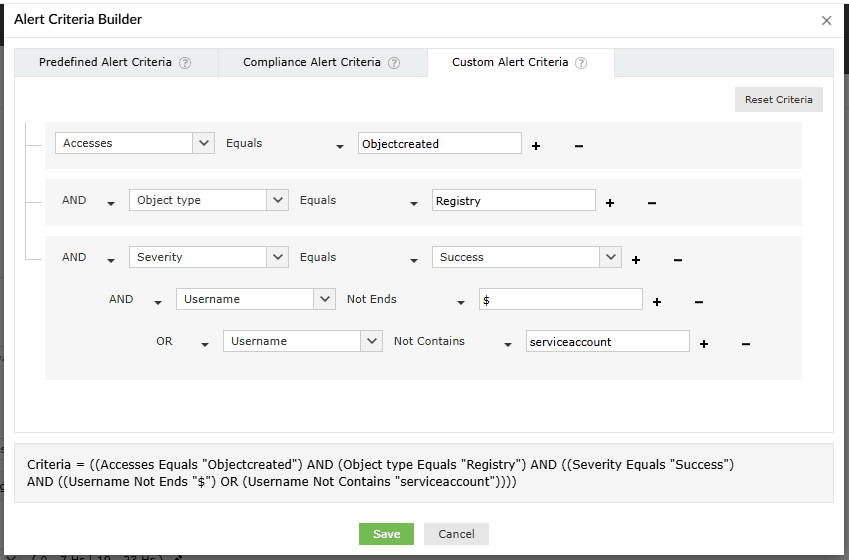
Sample Usecase:
The alert criteria below tells EventLog Analyzer to trigger an alert when a registry key or value is successfully created, but not by system or service accounts.
Tips
- Use Smart Threshold to reduce false alerts.
- Group devices for easier alert management.
- Test your alert with a non-critical device first.
- Adjust Time Range to prevent alerts during off-hours.