It's been a while since our last blog post -
We've recently been working with a client on a ServiceDesk Plus Self-Service portal deployment and as this is always a popular topic We thought I'd share the results.
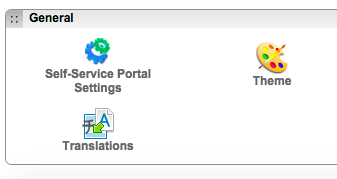
The issue we usually face in implementing the Self-Service portal is that it requires some additional customisation to make it more acceptable to the users and the business. Now you can go along way with the standard options in the Admin tab of ManageEngine ServiceDesk Plus in modifying the general presentation:
- changing the default logos via the 'Self-Service Portal Settings'
- modifying the default 'Theme' to match corporate branding
- altering some of the default text via 'Translations' to aid understanding (requires reboot)
There is also a flag in the 'globalconfig' file to disable the portal usage video on the right of the self-service portal and the option to modify the HTML of the right panel using the 'SelfServiceHelp.html' file. Please refer to the following ManageEngine ServiceDesk Plus FAQs for full details:
However, in this instance even after making all these modifications, the customer still felt the style of the self-service portal was somewhat lacking.
The fact that it was already possible to modify the default scheme got us thinking and, after a little playing, we realised that there were a series of web style sheet files that contained the settings for the presentation of the self-service portal in ManageEngine ServiceDesk Plus.
Now please bear in mind we are going 'off-piste' here and Zoho would not necessarily condone or recommend changing the default configuration files of ServiceDesk Plus directly but, in this case, needs must. Please also understand that it may be necessary to repeat any configuration changes after a patch update as the default configuration files might get overwritten or replaced. With those health warnings in place let's see how we went about modifying the style.
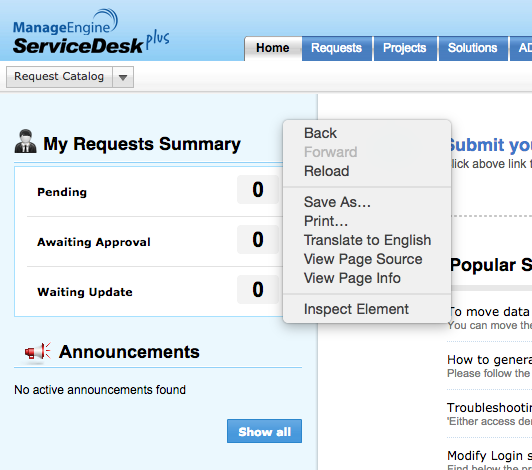
First off we used the power of a modern browser, like Google Chrome, with it's in-built developer tools to discover the style element of any part of the self-service portal page that we were interested in changing. Let's say we wanted to change the blue backdrop on the left hand column of the self-service portal which is not controlled by the Theme options of the GUI in ServiceDesk Plus. All we need do is right click the blue background and choose 'Inspect Element':
You'll then see the full detail for that element, as shown below:
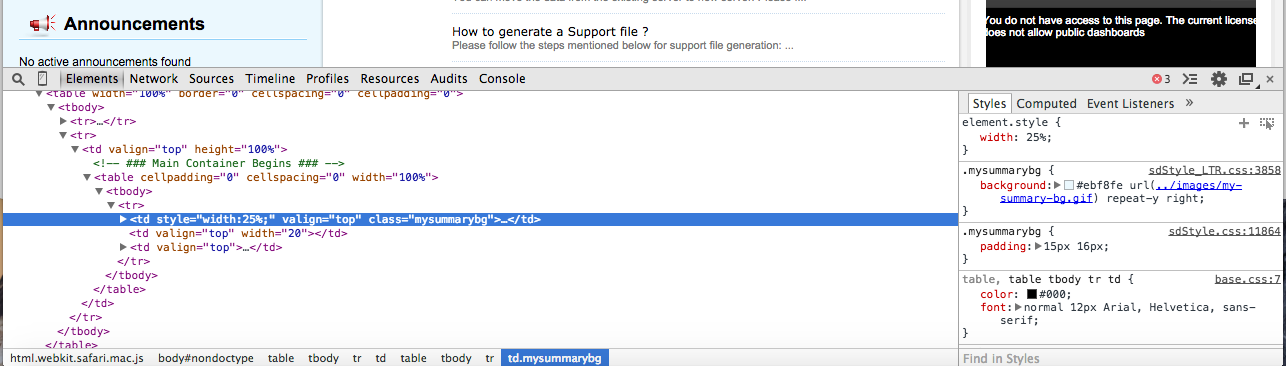
The interesting bit is the Style tab on the right where you'll see the HTML colour code for this background and the file where this is located, in this case 'sdStyle_LTR.css:
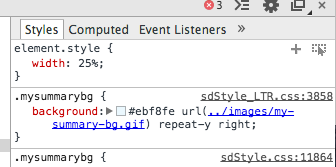
Now here's the really clever bit, simply click on the coloured square and change the colour instantly - lets go white (#FFFFFF):
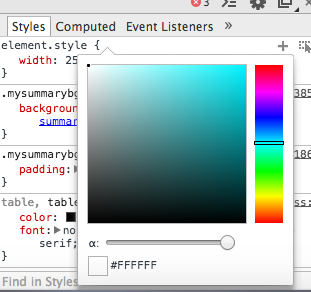
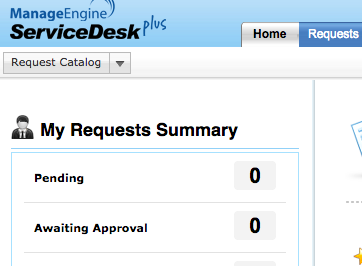
Obviously this is only for the currently displayed page. To make it permanent you would have to actually go and make a text file edit to change the colour definition from '#EBF8FE' to '#FFFFFF' of the element '.mysummarybg' in the CSS file 'sdStyle_LTR.css' to make it permanent; to find the CSS files just search the ServiceDesk Plus installation folder for the CSS file name, it's buried quite deep!
Given our previous warnings we would suggest you make all your major style changes using the standard, supported features and simply use this process for anything that you can't control via these functions by way of style. Just remember to keep a backup of the original CSS file for any files you modify and document all the element changes you make .. ;)
We hope this is some use...
set3 Solutions