[Tips & Tricks] Sending an Email Notification for a Specific Template
Sometimes it’s handy to know when users might have raised a request using a specific template from the self-service portal. You might even need this notification to go to a distribution list of recipients. This post discusses a couple of easy techniques to achieve this in ManageEngine ServiceDesk Plus.
At present, there is nothing available on either an Incident or Service Request Templet that would allow you to send an email notification. For this, you need to look at the Business Rule options. Bear in mind that there are separate Business Rules for Incident and Service Request Templates under the Admin tab, so make sure you are configuring the one you want!
When you create a Business Rule you will need some form of Criteria to match on; the simplest choice would be to ensure your template has a unique Subject line to match on but you could match on any unique criteria for the template:

Once you’ve added your match criteria you can select an Action for the Business Rule but this can be left blank if no action is required. More importantly, you can then select to enable an email notification:

When you go to Add technicians to the Email Notification you will notice that only the currently defined Technician accounts in your ServiceDesk Plus are available for selection. If you wanted to send to an email distribution list that reached key users as well as technicians this option is not currently provided.
There is a solution to this which we’ve previously alluded to in other blog posts, that of the ‘non-login’ Technician account. The bonus is that this type of Technician account does not require a Technician license. Simply create a new Technician account manually from ‘Admin > Users > Technicians > Add New Technician’. Then create a Technician account to represent the required email distribution list (sales in my example):
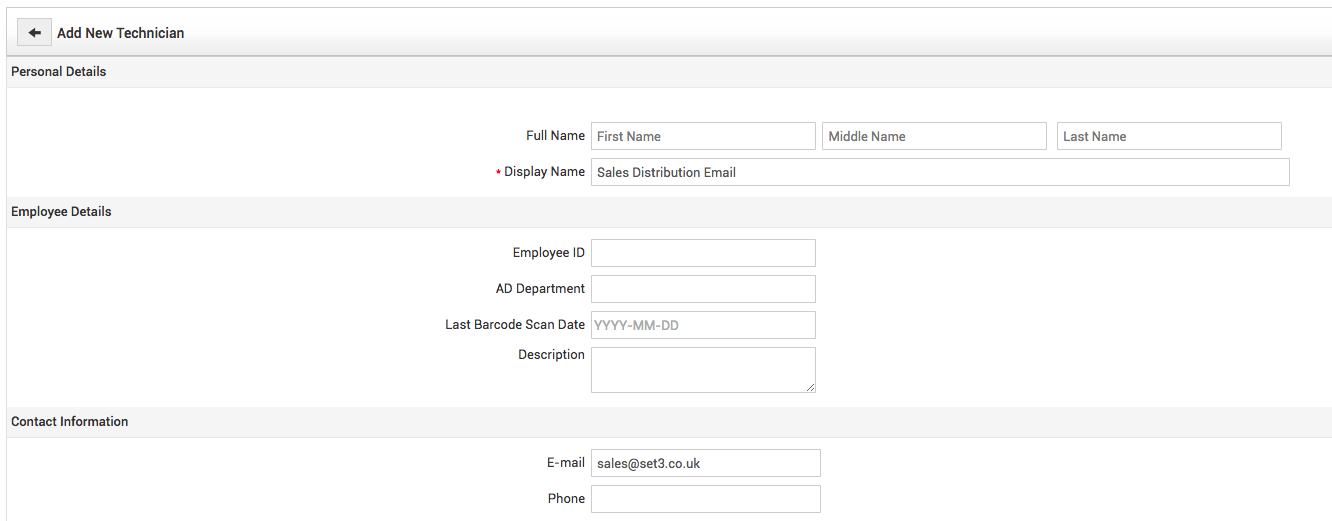
Setup the rest of the Technician account as needed for Sites and Groups and scroll to the bottom of the form. You’ll notice an option to ‘Enable login for this technician’. You’re going to leave this unchecked and Save the account settings.

Then when you add Technicians to the Email Notification option of your Business Rule you should see the ‘Non-login’ Technician account available in the list of Technicians:

The email notification will now go to everyone on the email distribution list.
Enjoy!
set3 Solutions
ManageEngine UK Technology Partner of the Year