Java4Shell (CVE-2026-114938)

UPDATE: The patched JRE is available in build 16040. We strongly recommend upgrading your ServiceDesk Plus installation to this build at the earliest. You can download the corresponding service pack from our website here.

The following product builds support a direct upgrade to the respective patched builds:
ServiceDesk Plus (SDP): Build 15200 or later can be upgraded directly to build 16040 which includes the patch.
AssetExplorer (AE): Build 7800 or later can be upgraded directly to build 8040 which includes the patch.
ServiceDesk Plus MSP: Build 15310 or later can be upgraded directly to build 15330 which includes the patch.
SupportCenter Plus: Build 15310 or later can be upgraded directly to build 15330 which includes the patch.
If upgrading is not feasible at this time, please follow the steps outlined below to apply the workaround. Please note that this workaround is required only for the following builds.
ServiceDesk Plus (SDP): Build 15200 to 16030.
AssetExplorer (AE): Build 7800 to 8030.
ServiceDesk Plus MSP / SupportCenter Plus: Build 15310 to 15320.
Overview:
The attached java4shellfixer utility to apply a temporary workaround for Java4Shell (CVE-2026-114938) when an immediate upgrade to a product supported patched JRE is not feasible.
The utility configures the following JVM option to disable Base64 intrinsics:

-XX:-UseBASE64Intrinsics

Important: This workaround is temporary and does not replace upgrading to a product supported patched JRE.
Before You Begin:
- The utility uses the JRE bundled with the application.
- Unsupported versions will return a failure message.
- Run the utility as the installation owner with write permissions to the files being modified and their parent directories.
- Back up the relevant configuration files before proceeding. The utility does not create backups automatically.
<SDP_HOME> refers to the ServiceDesk Plus installation directory.
Files that will be modified post running the tool.
Operating system | Configuration files updated |
Windows | <SDP_HOME>\bin\run.bat |
Linux / Unix | <SDP_HOME>/bin/run.sh only |
1. Download the attached java4shellfixer.zip utility.
2. Stop the ServiceDesk Plus application.
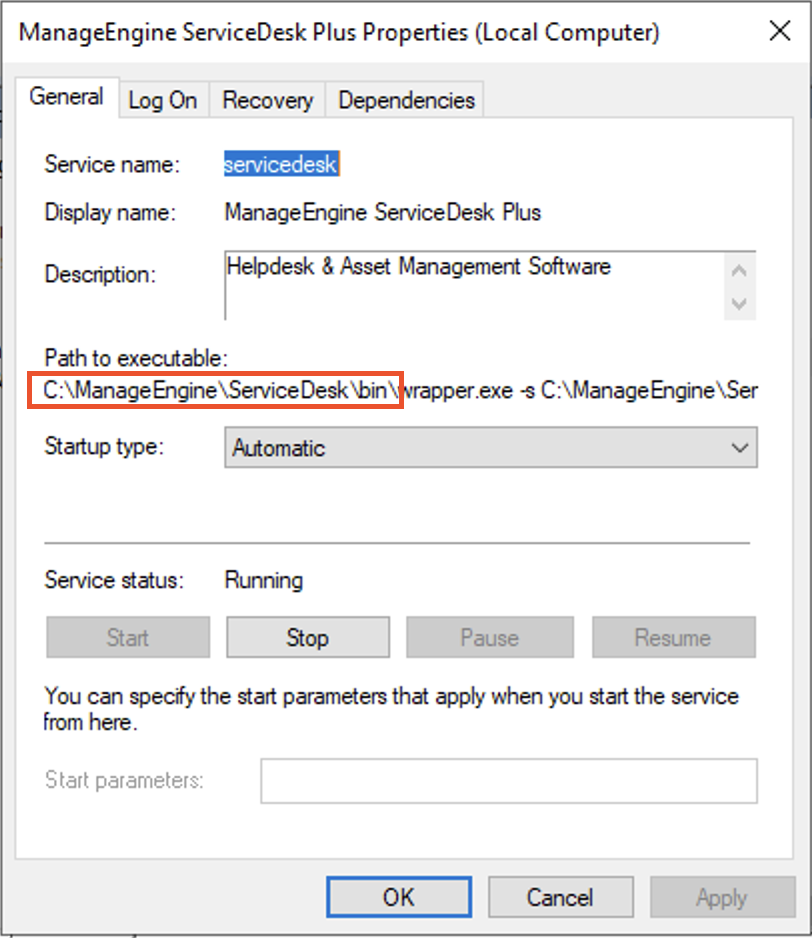
For Windows servers: Stop ServiceDesk Plus from services.msc. You can find the exact installation directory in the service properties as shown in the screenshot below.
For Linux/Unix servers: Navigate to the directory ..\ManageEngine\ServiceDesk\bin and execute the following command:
sh shutdown.sh -S
3. Extract the java4shellfixer.zip file into the appropriate installation directory based on your application:
ServiceDesk Plus: ..\ManageEngine\ServiceDesk
ServiceDesk Plus MSP: ..\ManageEngine\ServiceDesk-MSP
SupportCenter Plus: ..\ManageEngine\SupportCenter Plus
Asset Explorer: ..\ManageEngine\AssetExplorer
Asset Explorer: ..\ManageEngine\AssetExplorer
4. Verify that the extracted utility files as shown in the screenshot below are available inside the java4shellfixer folder under the respective application installation directory.

5. Once verified, open Command Prompt with Administrator privileges (for Windows) or a Terminal with root/sudo privileges (for Linux/Unix). Navigate to the ..\ManageEngine\ServiceDesk\java4shellfixer directory under the respective application installation directory and execute the commands provided below based on your server's operating system.
Windows:
java4shellfixer.bat
Linux / Unix / macOS:
sh ./java4shellfixer.sh

Important: Keep the application stopped while the utility is running.
The utility runs successfully and applies the required fix to the JRE. If the server uses an ARM-based processor architecture, the utility may intentionally skip execution because the fix is not applicable to that architecture.
Verify the Result:
SUCCESS: The workaround has been applied successfully.
SKIPPED: The utility detected an ARM runtime and skipped the workaround.
FAILURE: Keep ServiceDesk Plus stopped and contact our Support with the displayed error.
NOTE: We strongly request you to upgrade the application at the earliest.