I want to move SDP to a new application server. The database is hosted on a separate Microsoft SQL server. I found the instructions below on an earlier forum post, but I have a few questions:
At Step 5 "Install Service Desk on new server". The install reaches the point where I am asked to enter the database server details; however the database name is hard coded as "servicedesk" and it won't let me change it. I had expected to be able to create a separate database for the new install (eg called servicedesk2). Following completion of the new SDP installation I could then do a backup of the database on the old server and restore it onto the new one.
How can I complete the installation on the new server if it won't let me choose a different database name?
What would happen if I went ahead with the install with the default database name of "servicedesk". Would the new build "wipe" the original database (hopefully not)? Would the new build attempt to "take over" ownership of the existing database (which probably wouldn't work as the new install would not yet be up to the correct service pack level)? Would it simply fail because a database called "servicedesk" already exists?
You can probably tell that I am not a MS SQL expert. I don't want to risk screwing up the production database.
Thanks for your help,
Roy
Step 1: Stop ManageEngine ServiceDesk Plus service.
Step 2: Kindly Upgrade ServiceDesk Plus if required. Refer to the link below to check if you are in the latest version;
http://manageengine.com/products/service-desk/service-packs.html
Refer to the section UPGRADING ServiceDesk Plus of FAQ for detailed instructions for upgrade.
Step 3: Now start and stop the ManageEngine ServiceDesk Plus service once after the upgrade process.
NOTE: If you are planning on performing multiple upgrades, please make sure you start and stop the application, and perform a backup before each and every upgrade.
Step 4: From command prompt, go to [ServiceDesk Plus-Home]\bin directory and execute backUpData.bat command to start the data backup.
Once the backup is complete, a backup file with .data extension is placed in the Backup folder under ServiceDesk Plus Home directory. This backup file contains information about the Build number of ServiceDesk Plus, and the date and time of when the backup was performed. Here is the format of the backup file.
Backup_ ServiceDesk_ [Build number] _Month _date _ Year _ Hour _Minutes
For example, a backup taken in Version 7 and Build 7500 of ServiceDesk Plus looks like this
backup_servicedesk_7500_fullbackup_02_24_2009_07_51.data
Step 5: Install ServiceDesk Plus on the new server.
Step 6: Copy the backup folder from the old server to [ServiceDesk Plus-Home] in the new server.
Step 7: To restore the backed up data, Go to [ServiceDesk Plus-Home]\bin directory and execute restoreData.bat. Choose the backup file while prompted. See example below:
cmd> [ServiceDesk Plus Home]\bin
cmd> restoreData.bat
where, Service Desk Home -> C:\ManageEngine\ServiceDesk [  Screenshot ]
Step 8: Start the ServiceDesk Plus server once after restoring the data in the new server.
Step 9: Set the new server name under Admin -> Self Service Portal Settings -> Alias url.
NOTE: Data can be restored only across same builds of ServiceDesk Plus version. i.e. data backed up in 7500 build of ServiceDesk Plus can be restored only in 7500 build. Please check if the old build and new build are of same build versions.
Build version can be checked
- By clicking on the About link in the application [OR]
- From buildInfo.xml file under <Service Desk Home>/server/default/conf directory.
If the old build is a different build, then the same build needs to be installed in new server. You can download earlier builds of ServiceDesk Plus from our Archives website http://archives.manageengine.com/service-desk/
Best regards
set3 Solutions
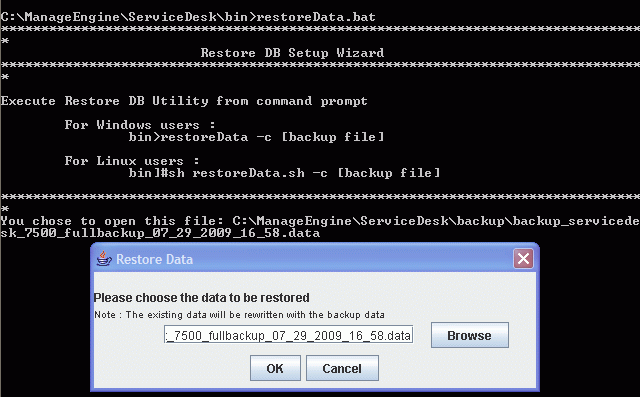 Screenshot