[KB] Prevent Intruder's Attack - 2: Reset User Password
In the previous forum post, we saw what are the possible ways through which we can prevent intruders' attack. This week we will see how to reset user passwords in bulk, which is one of the possible ways.
When an employee leaves your company, resetting the user's password is the first and the easiest way to prevent access. When a large number of employees leave the organization, password reset consumes time. But with O365 Manager Plus, you can reset user passwords in bulk in a few simple steps.
Bulk user password reset
- Go to Management tab.
- Select User Management under Azure Active Directory in the left pane.
- Select Reset Password.
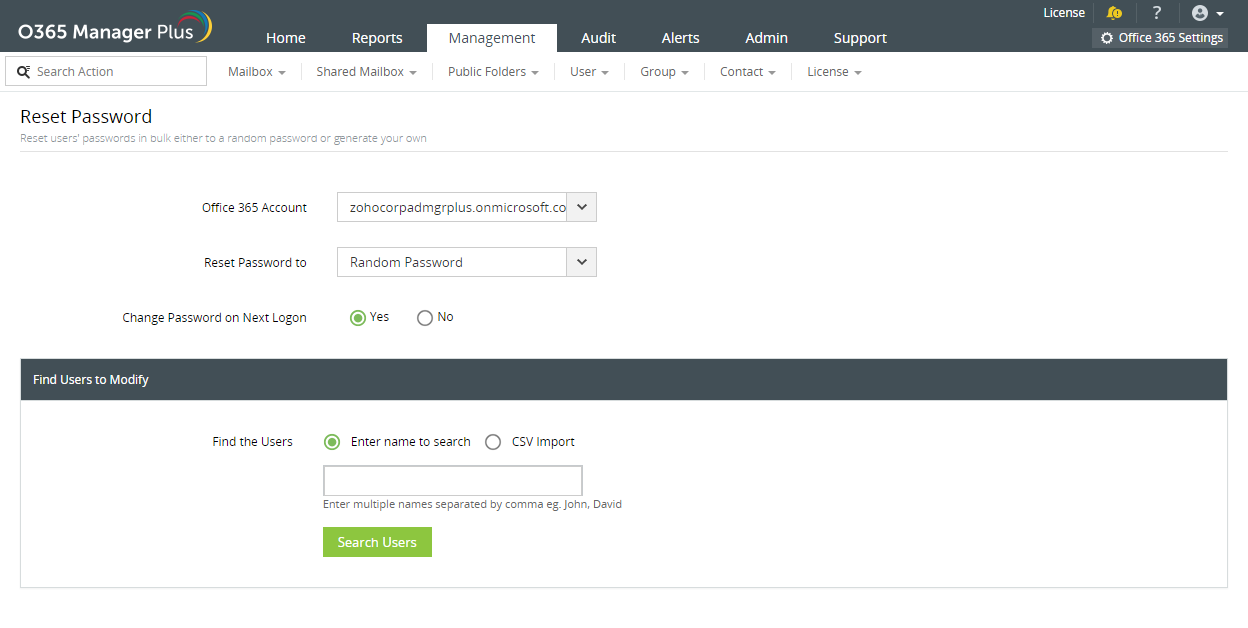
- Fill in the required details. In Reset Password to field, you can either give your own password by selecting Let me generate, or generate a random password by selecting Random password.
- To find users to modify, you can either select the users manually by typing their names or use CSV file to import users.
- Click Apply.
You can reset the passwords of as many users you want by following the above-mentioned steps. Next week we shall see how to disable user mailboxes in bulk.
To know more about O365 Manager Plus, click here
Screenshot