[KB] Know Your Clutter Settings
Clutter feature in Exchange Online helps you to prioritize emails automatically by observing and mimicking your email processing behavior. When enabled, less important emails are moved to a separate folder allowing you to concentrate on the important ones. By default, the cluster feature is enabled for all mailboxes. Being an administrator you might want to disable clutter for some users, as you need them to concentrate on all the emails sent to them, especially when it involves customer support.
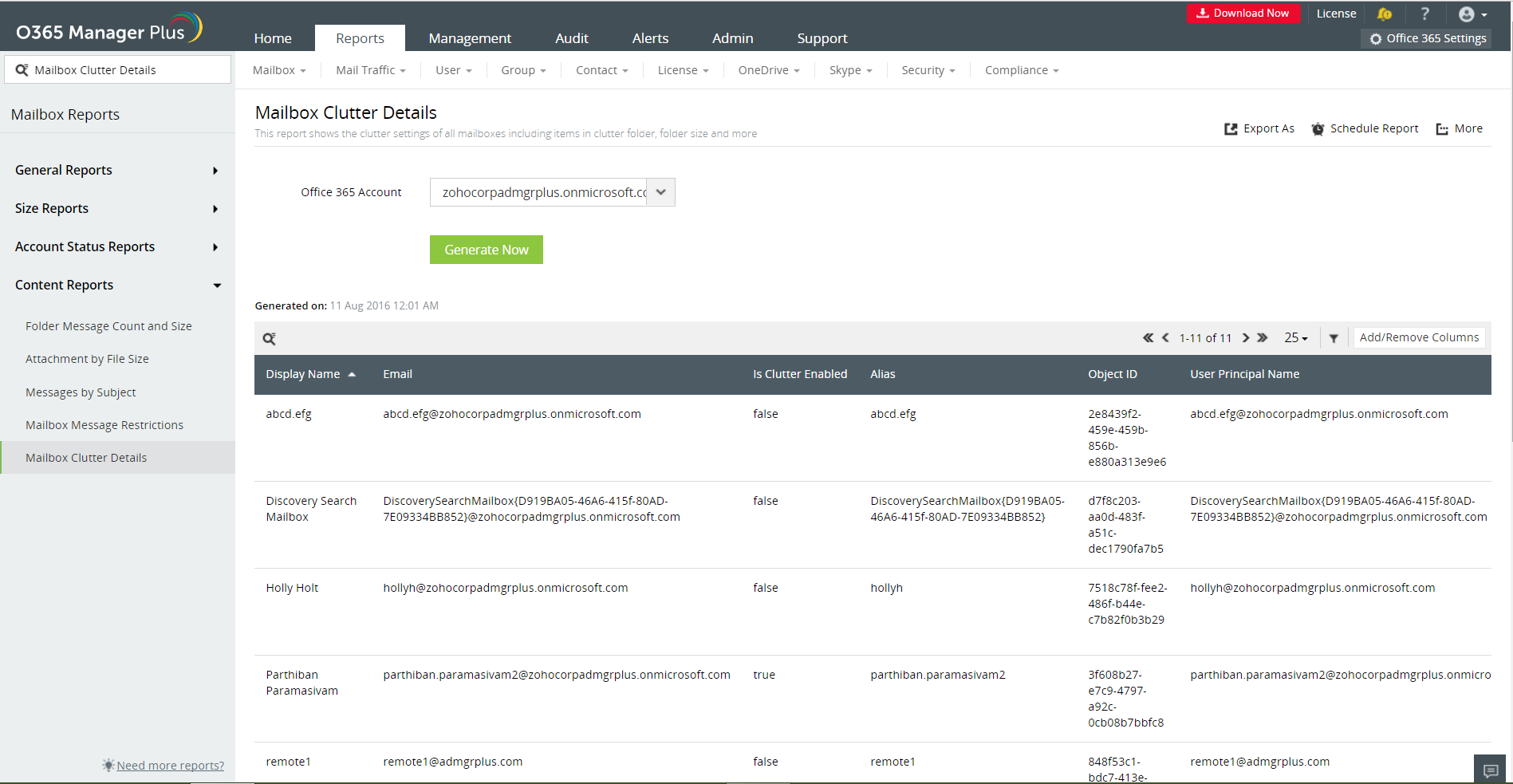
O365 Manager Plus provides you Mailbox Clutter Details Report, which presents you information on clutter settings of all mailboxes such as,
- Display name
- Email address
- Is clutter enabled
- Items in clutter folder
- Clutter folder size
- Recipient type, and more.
Generate Mailbox Clutter Details Report
- Go to Reports tab
- Under Content Reports select Mailbox Clutter Details
- Click Generate Now
With O365 Manager Plus clutter settings can also be audited. You can get details on who enabled/disabled clutter settings of which mailbox and when. The report can be exported to PDF, XLS, CSV or HTML format. It can also schedule to be generated and emailed to the administrator at regular intervals so that nothing misses your eye.
Read more about O365 Manager Plus . You can try online product demo .