[KB] Customization at its Peak

[KB] Customization at its Peak

O365 Manager Plus, provides you various customization features that make Office 365 administration effortless. This post covers some of the prominent customization features available.


Manage selected mailboxes

O365 Manager Plus also allows you to manage a particular set of mailboxes instead of all the available mailboxes in your organization. It reduces the overhead of perusing the report for the required data.


Steps to follow

  • Click Office 365 Settings, found in the top right corner of the console.
  • Select Manage Licenses option.
  • In the Managed Mailboxes column, select the number of mailboxes. [Refer image]
  • In the pop-up, you can select the mailboxes you want to manage.
  • Click OK.


Custom Dashboard

O365 Manager Plus provides you a customizable dashboard in which you can opt to display your desired reports, to take a quick peek whenever you want. You can also embed the dashboard in your desired web page.


To customize the widgets in your dashboard

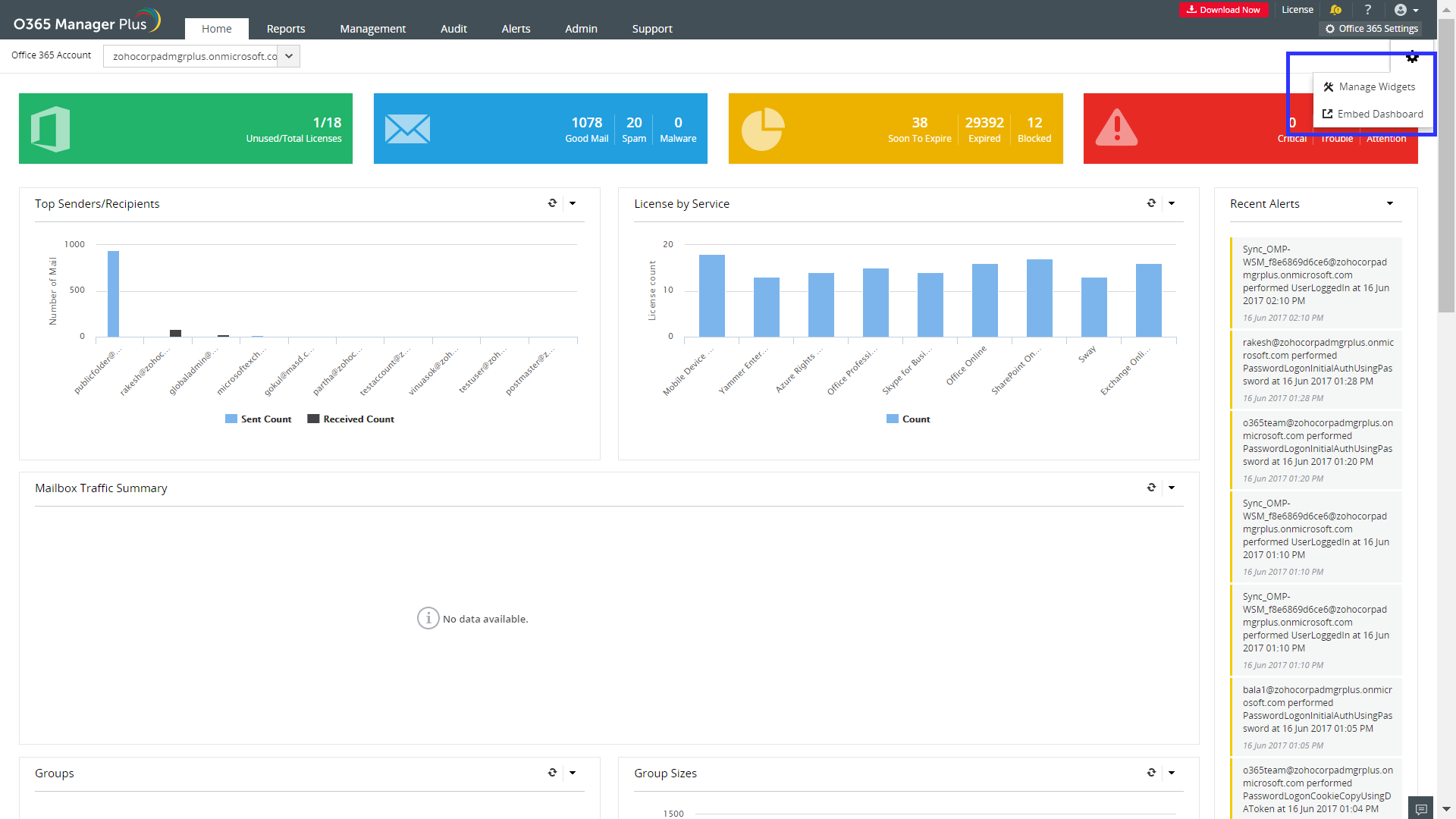
  • Click Home tab.
  • Click settings icon in the top-right corner of the page. [Refer image]
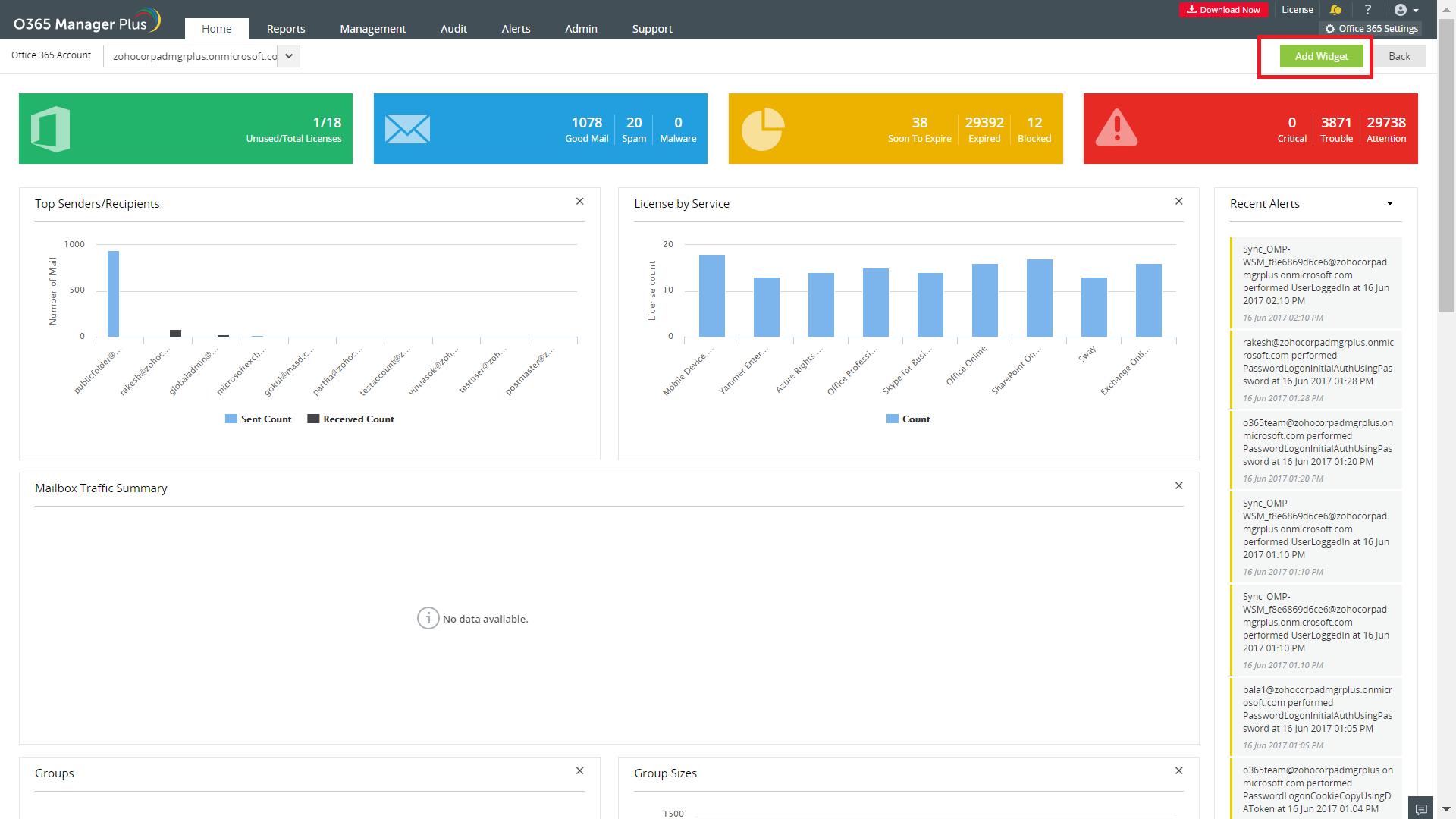
  • Select Manage Widgets.Select Add Widget. [Refer image]
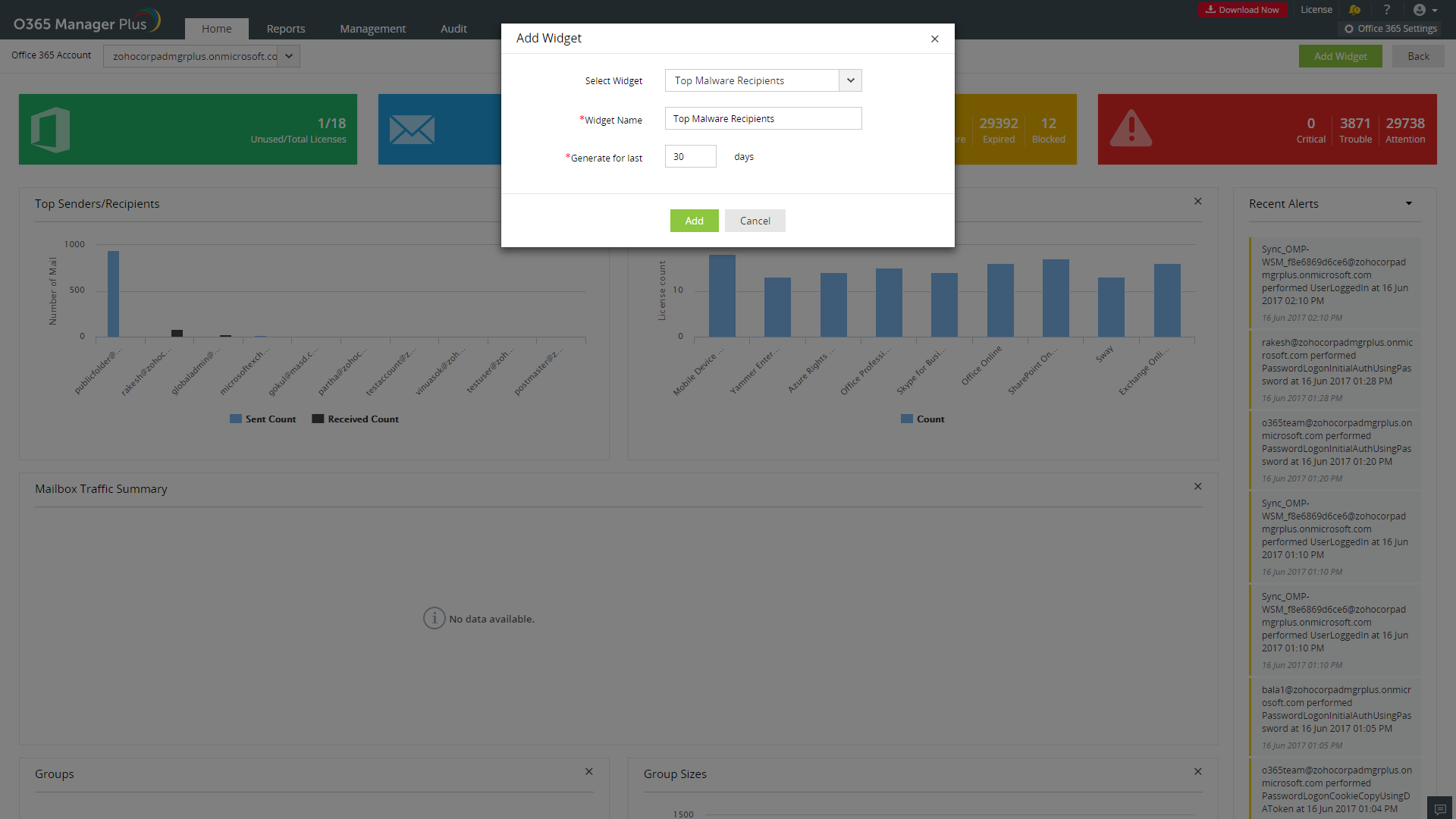
  • In the pop-up select the desired widget, give a custom name for the widget and give the duration for which the data must be generated. [Refer image]
  • Click Add.


Embed dashboard/widget

O365 Manager Plus allows you to embed your custom dashboard to any of your web pages for convenience. Don't want to embed the entire dashboard? You can even embed the desired widget alone. 


To get the HTML snippet for the dashboard, 

  • Click Home tab.Click settings icon in the top-right corner of the page. [Refer image]
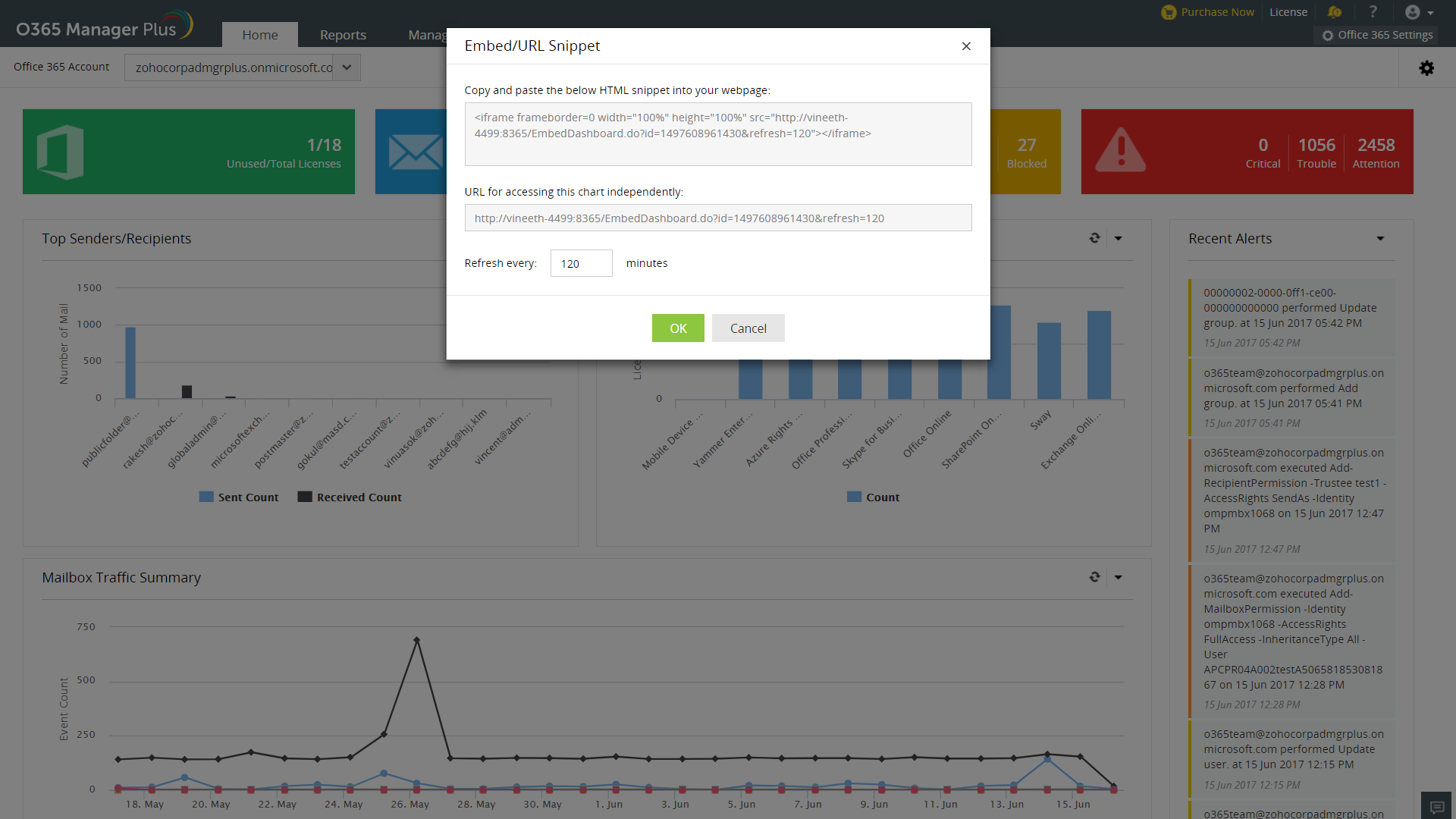
  • Select Embed Dashboard.Copy the HTML snippet from the pop-up. [Refer image]
  • Select the interval at which the dashboard must be refreshed.
  • Click OK.


To get the HTML snippet for the widget, 

  • Click Home tab.
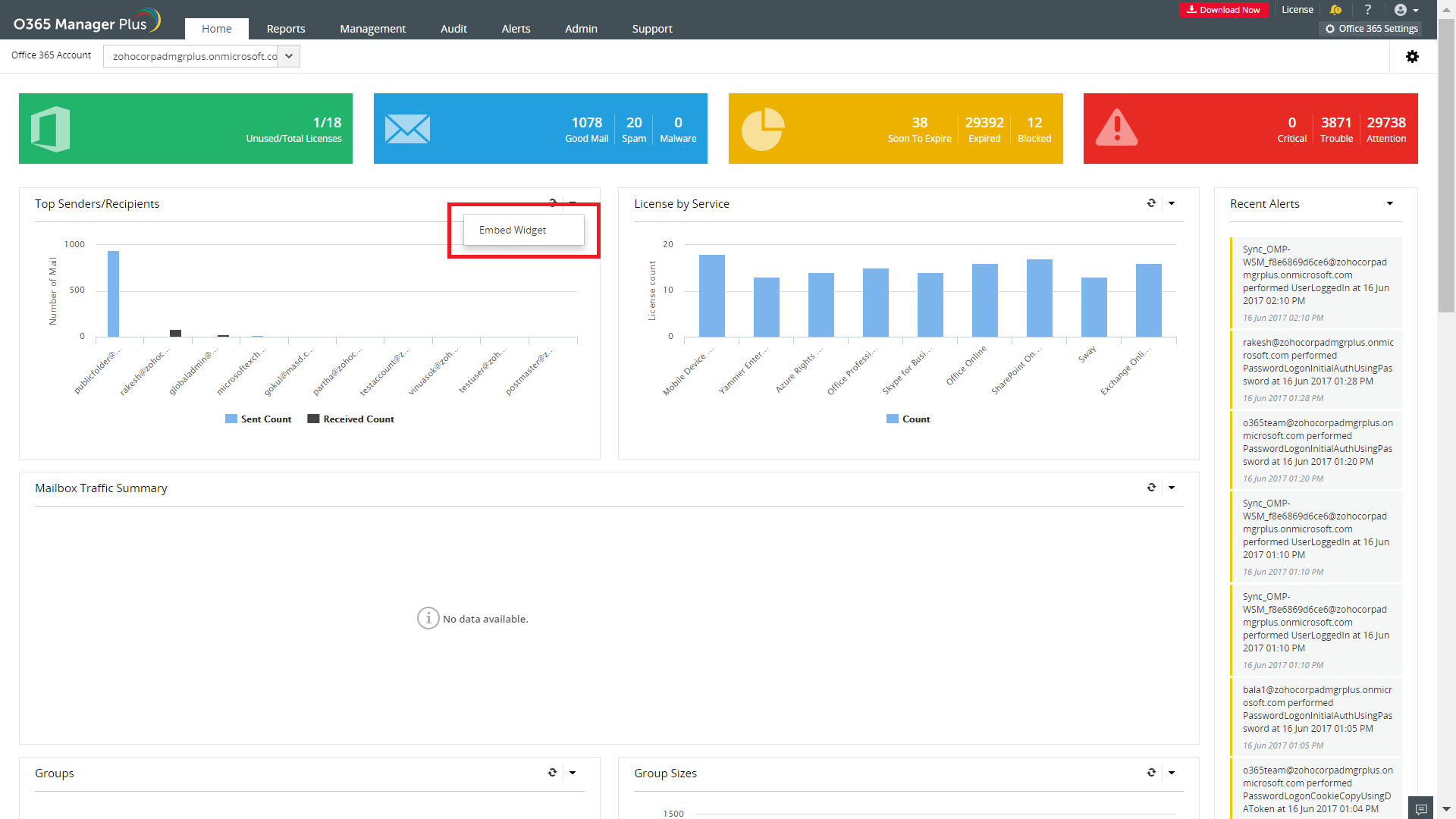
  • Select the drop down arrow near the desired widget. [Refer image]
  • Select Embed Widget.
  • Copy the HTML snippet from the pop-up.
  • Select the interval at which the dashboard must be refreshed.
  • Click OK.Now you can paste the code in your website.

Now you can paste either of the snippets in your desired web page for a quick peek.


Read more about O365 Manager Plus here. You can try online product demo here.

                      New to ADSelfService Plus?