Chat, Voice & Video Calls now available in Endpoint Central MSP App
We are pleased to announce the availability of Chat, Voice, and Video Calls in the Endpoint Central MSP App. Admins can now communicate directly with agents from within the app, enabling faster issue resolution without switching between tools.
Feature Description
• Chat – Real-time messaging between admins and agents.
• Voice calls – Low-latency voice communication, directly in-app.
• Video calls – Face-to-face support sessions without third-party tools.
How It Works
Connections are established in real time using industry-standard protocols, ensuring a secure and responsive experience:
• WebSocket – Real-time messaging channel between admin and agent.
• WebRTC – End-to-end media encryption for voice and video.
Availability
Install the latest version of the Endpoint Central MSP app from the App Store or Google Play Store to access these features.
This feature is currently supported on on-premises (OP) servers only, and is available exclusively for Windows devices. The target device must have a Windows Endpoint Central agent installed that supports these capabilities for communication sessions to be initiated.
Steps to Get Started
1. In your Endpoint Central MSP app, go to Devices Tab. Then select the device you want to connect to.


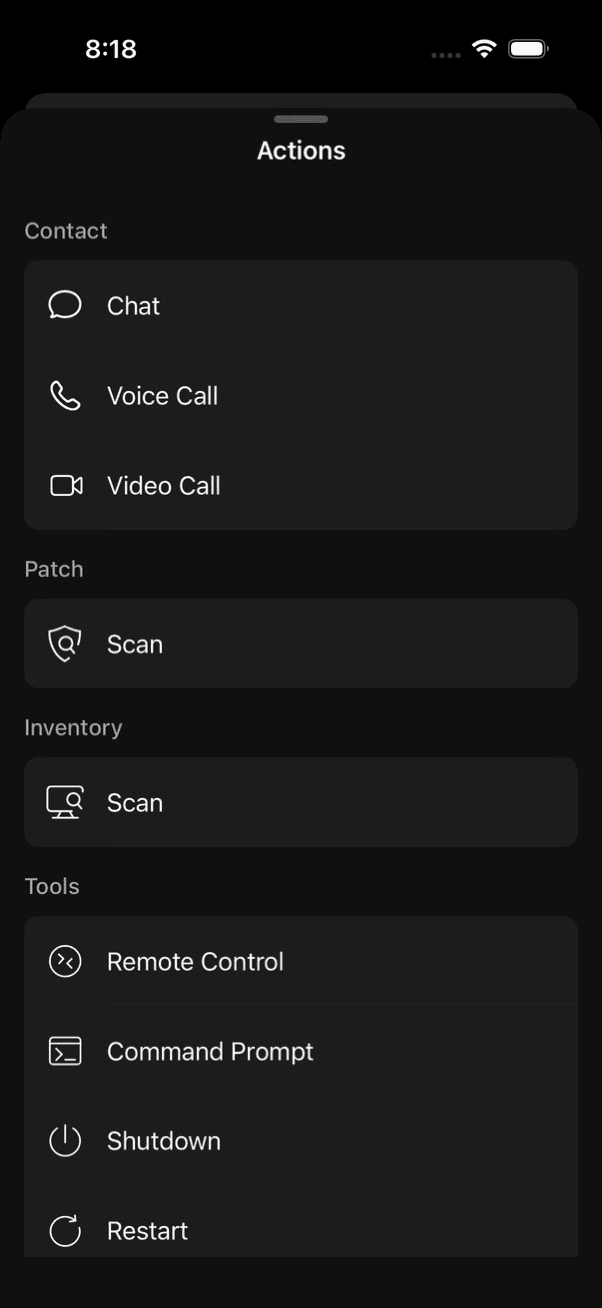
2. To access the device actions, either swipe left on the device and tap Actions, or tap the device to open its Overview page and then tap the menu icon in the top-right corner.


3. Under the Contact section, choose Chat, Voice Call, or Video Call. Then select the logged-on user and tap Chat/Call to initiate the session.
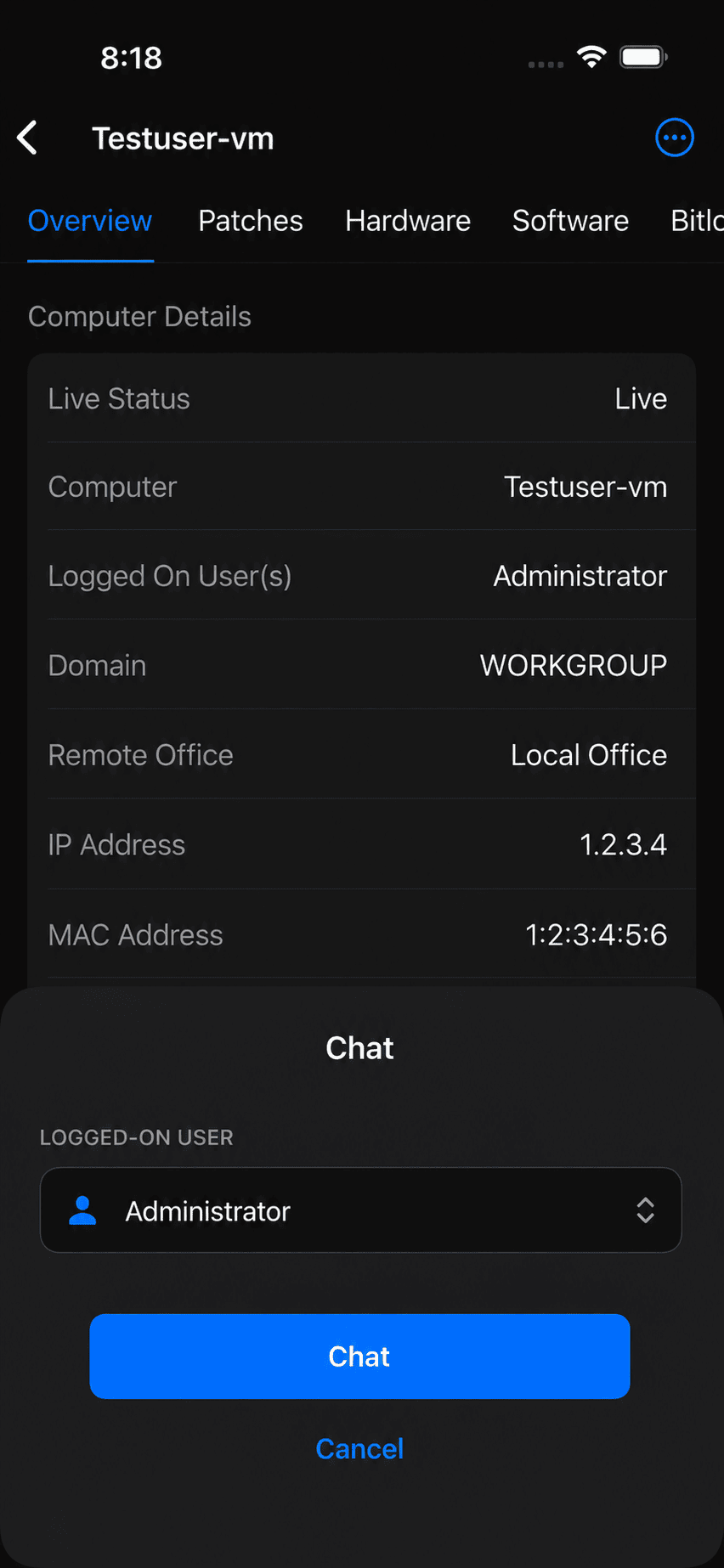
4. After initiating the chat/call, wait for the agent to connect. The status will display "Chat Initiated"/"Ringing" until the agent joins the session.
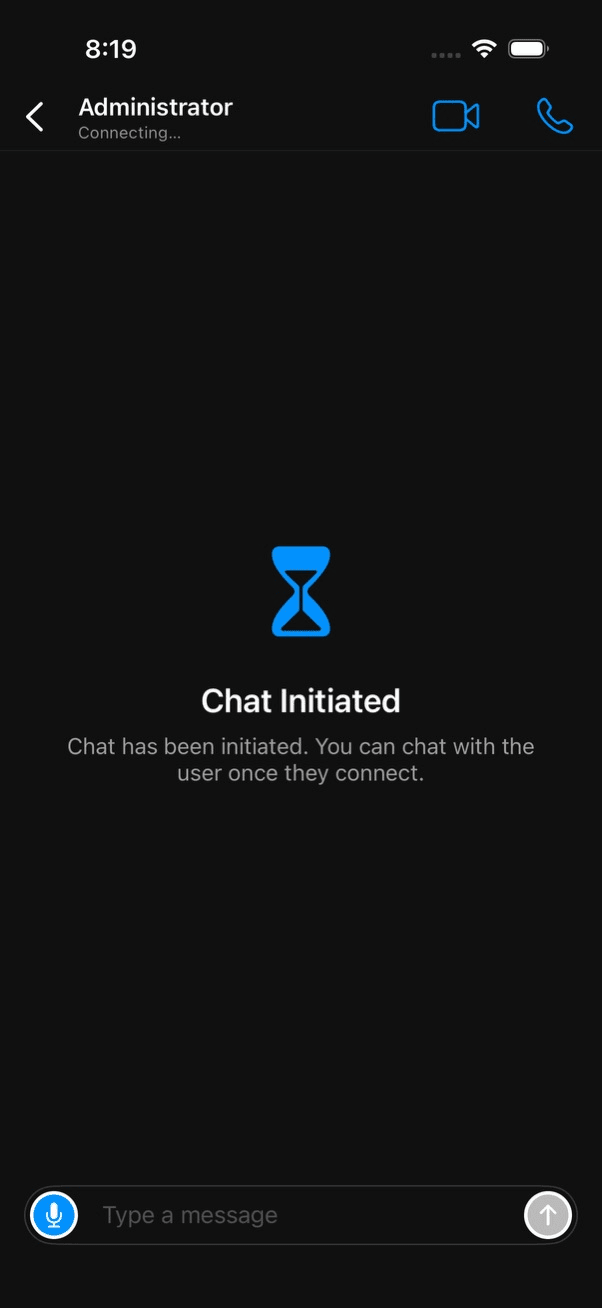
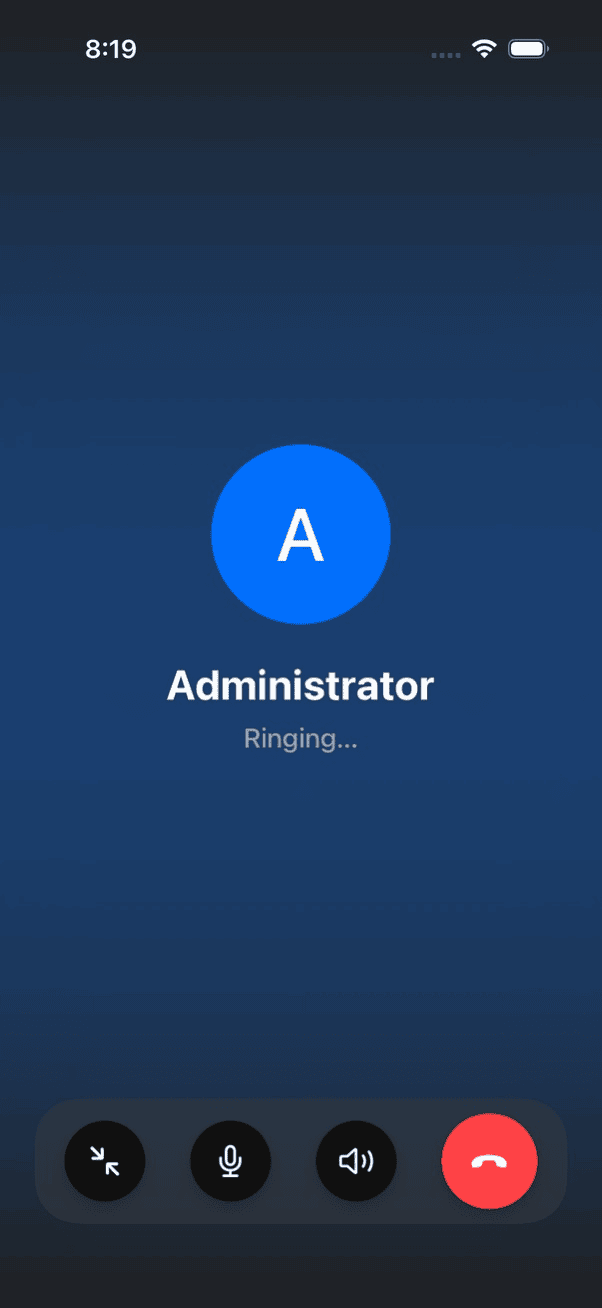
5. Once the agent receives and accepts the request, the chat/call session begins.
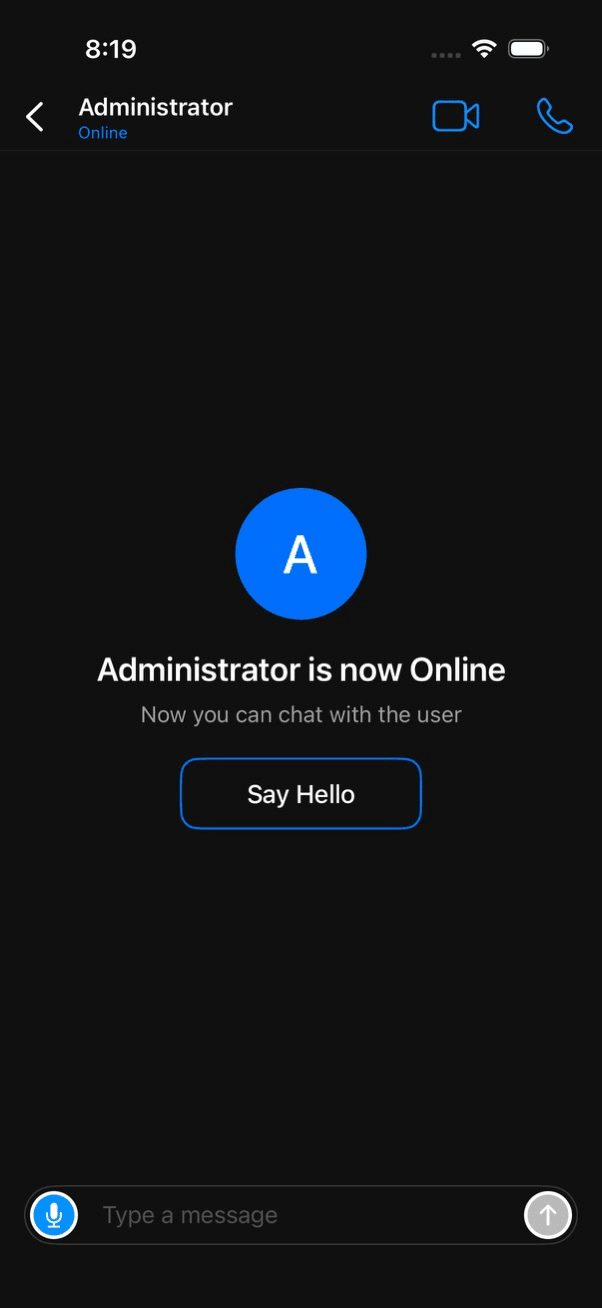
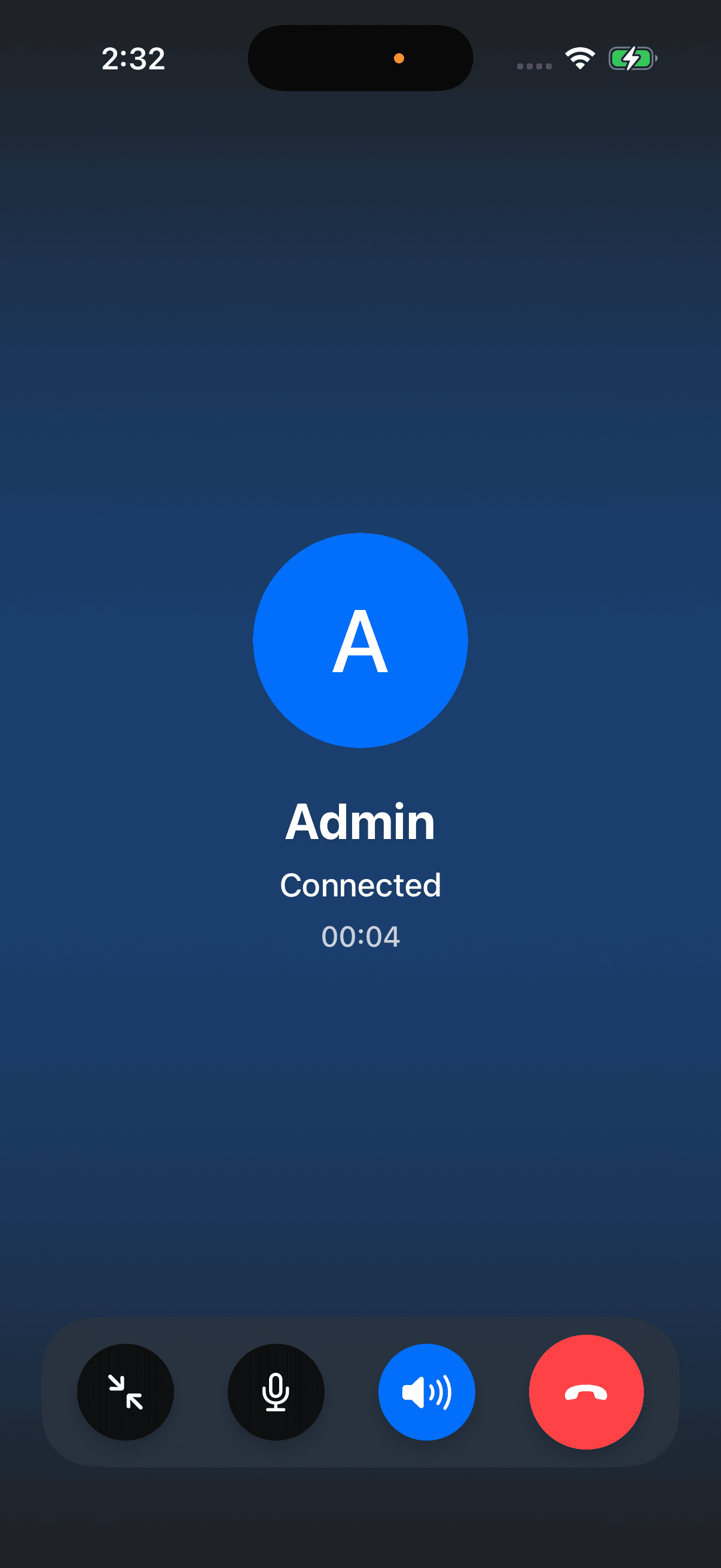
We encourage admins to explore this feature and share your feedback in the replies below. If you encounter any issues or have questions, our support team is ready to assist.
Regards,
The ManageEngine Team