A Guide to speedy resolution
Part 1
Working with a client the other week we were expanding upon the Incident management workflow in ManageEngine ServiceDesk Plus. The issue of effective Incident resolution came up and I expanded on a number of hints and tips that might be useful to hard pressed Technicians in dealing with their request queues.
I've decided to split this into two parts as there is a fair bit to cover. So, first off, the Resolution tab in a Request.

Did you realise that this tab has been designed so a Technician can swiftly close a call without having to navigate to the other tabs of the request? That's why you see both the Status Request field and a Work Log option. Assuming the Technician in ManageEngine ServiceDesk Plus has completed all the other mandatory elements of a Request they can enter the resolution, select the Request Status (ideally 'Resolved' if using auto request closure options) and enter any required WorkLog details if this is being mandated and submit - easy!
Another option to make life even easier is to setup a series of default Resolution Templates a Technician can simply select from when resolving a request - the less typing the better and it all ads up over hundreds of requests. To set the Resolution Templates you'll need to go to the Admin Tab and select the 'Helpdesk Customizer' and look for Resolution Templates in the left-hand menu options:
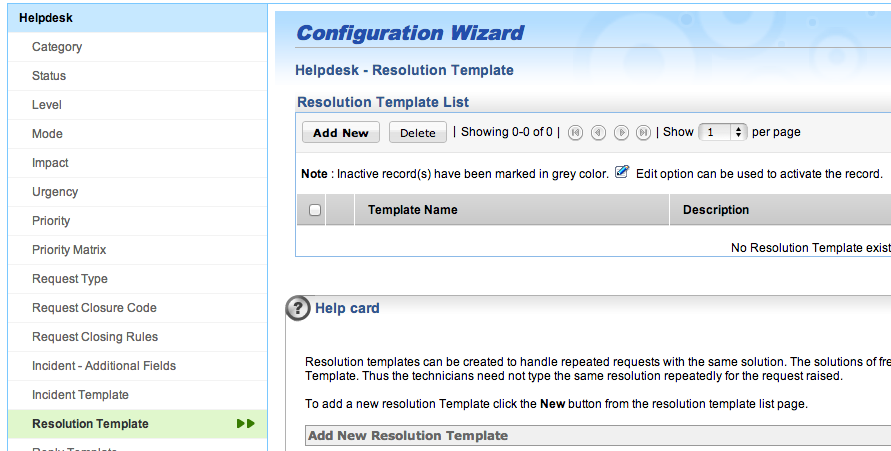
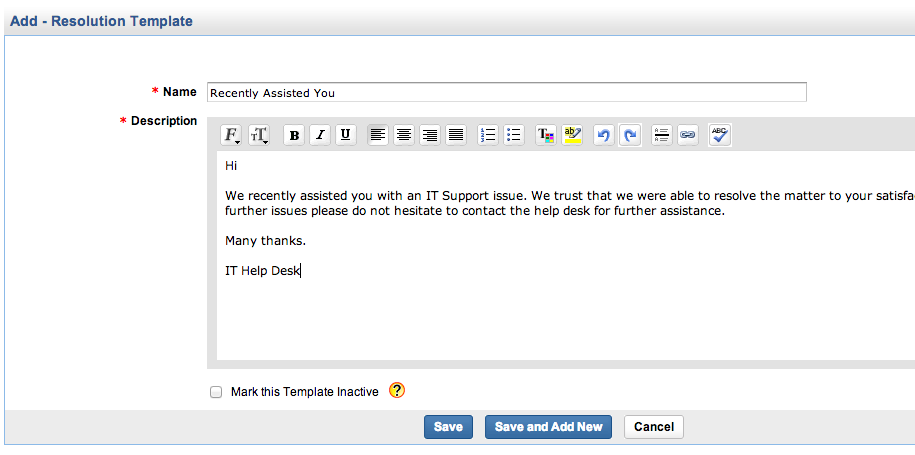
Simply create the required Resolution Templates for the Technicians to select from the Resolution tab in a request - either way it's go to be better than a Technician just writing 'Done'!
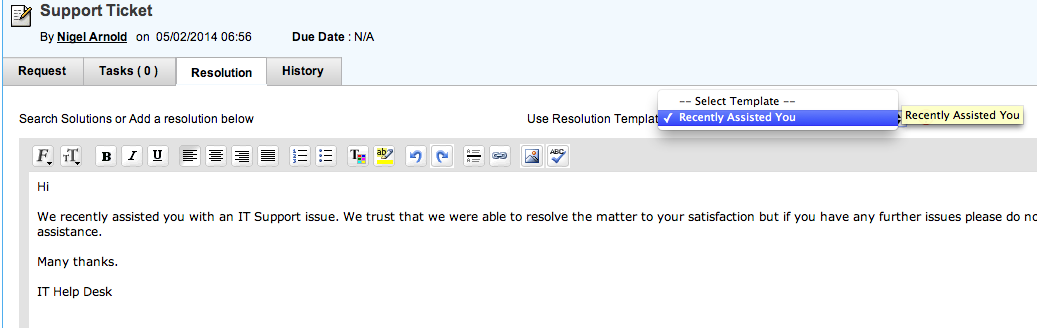
When you have created a Resolution Template in ManageEngine ServiceDesk Plus there will be a drop down selection box in the Resolution Tab of a Request - couldn't be simpler really:
I've decided to split this into two parts as there is a fair bit to cover. So, first off, the Resolution tab in a Request.
Did you realise that this tab has been designed so a Technician can swiftly close a call without having to navigate to the other tabs of the request? That's why you see both the Status Request field and a Work Log option. Assuming the Technician in ManageEngine ServiceDesk Plus has completed all the other mandatory elements of a Request they can enter the resolution, select the Request Status (ideally 'Resolved' if using auto request closure options) and enter any required WorkLog details if this is being mandated and submit - easy!
Another option to make life even easier is to setup a series of default Resolution Templates a Technician can simply select from when resolving a request - the less typing the better and it all ads up over hundreds of requests. To set the Resolution Templates you'll need to go to the Admin Tab and select the 'Helpdesk Customizer' and look for Resolution Templates in the left-hand menu options:
Simply create the required Resolution Templates for the Technicians to select from the Resolution tab in a request - either way it's go to be better than a Technician just writing 'Done'!
When you have created a Resolution Template in ManageEngine ServiceDesk Plus there will be a drop down selection box in the Resolution Tab of a Request - couldn't be simpler really:
Part 2
One element that often gets missed in the Resolution panel is the fact that you can search the Solutions or Knowledge portal for a previously created article. The text 'Search Solutions', just above the Resolution tab input field in a request, is actually a link to the Solutions module:

If you hover your mouse over the text you'll see it is actually a hyperlink. Pressing it will take you to the Solutions module but
it also has the cool function of populating the
default search criteria in the Solutions module with the title of the request.
This neat little trick means that, when combined with suitable Incident templates, you can offer technicians a quick any easy means of locating appropriate resolutions to an issue. All you need to do in your ManageEngine ServiceDesk Plus Solutions module is create a series of potential articles that include the default request title of the Incident template.
In the example I'm using I have an Incident Template in my Service Catalogue with the default title of 'Report Printer Error'. When an end user selects this template they are prompted to report certain details about the printer fault as part of raising the request.
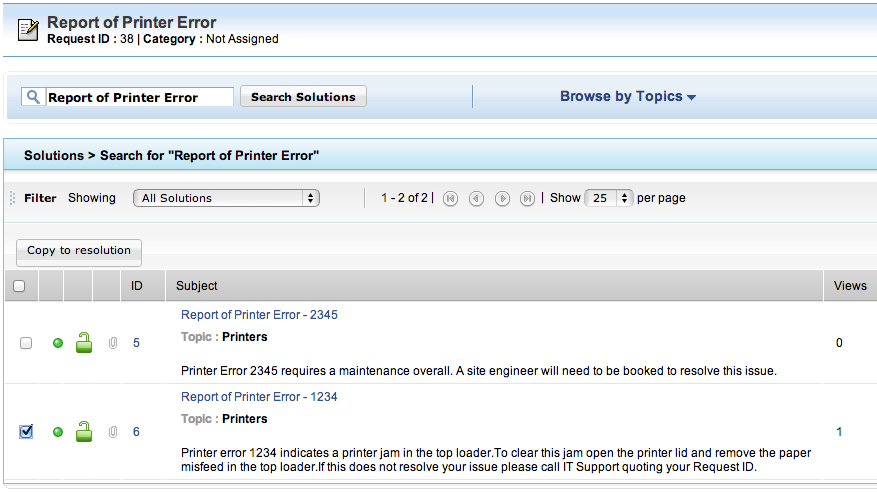
When the technician selects the 'Search Solutions' link in the Resolution tab of the request they are shown the knowledge articles that contain the text 'Report Printer Error'. The Technician
can then simply
select the appropriate article via the check box, given the details reported by the users, and copy the content to the Resolution tab simply by clicking the 'Copy to resolution' button:
The technician can then complete the request resolution in the appropriate manner, for example by marking as Resolved and adding a WorkLog:

This technique is ideal for issues where there are know errors and specific outcomes for resolution that can be suitably documented.
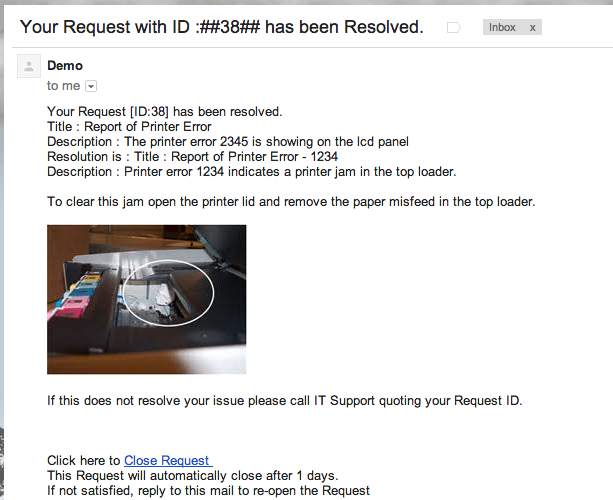
Don't forget you can always drop suitable pictures into a knowledge article to help assist the end user - check out the resolution email below:
We hope you find this useful.
For more tips & tricks -
http://set3manageengineuk.blogspot.co.uk
Best regards
set3 Solutions